
You don’t have to start from scratch each time you want to change your playlist. Open a playlist you have used in the past, then modify it or use it as-is. Keep all or some of the existing video clips and add new ones. This is perfect for seasonal playlists or recurring promotions.
Access the playlist
On the My Products page, click the Lobby Video Players Dashboard button.
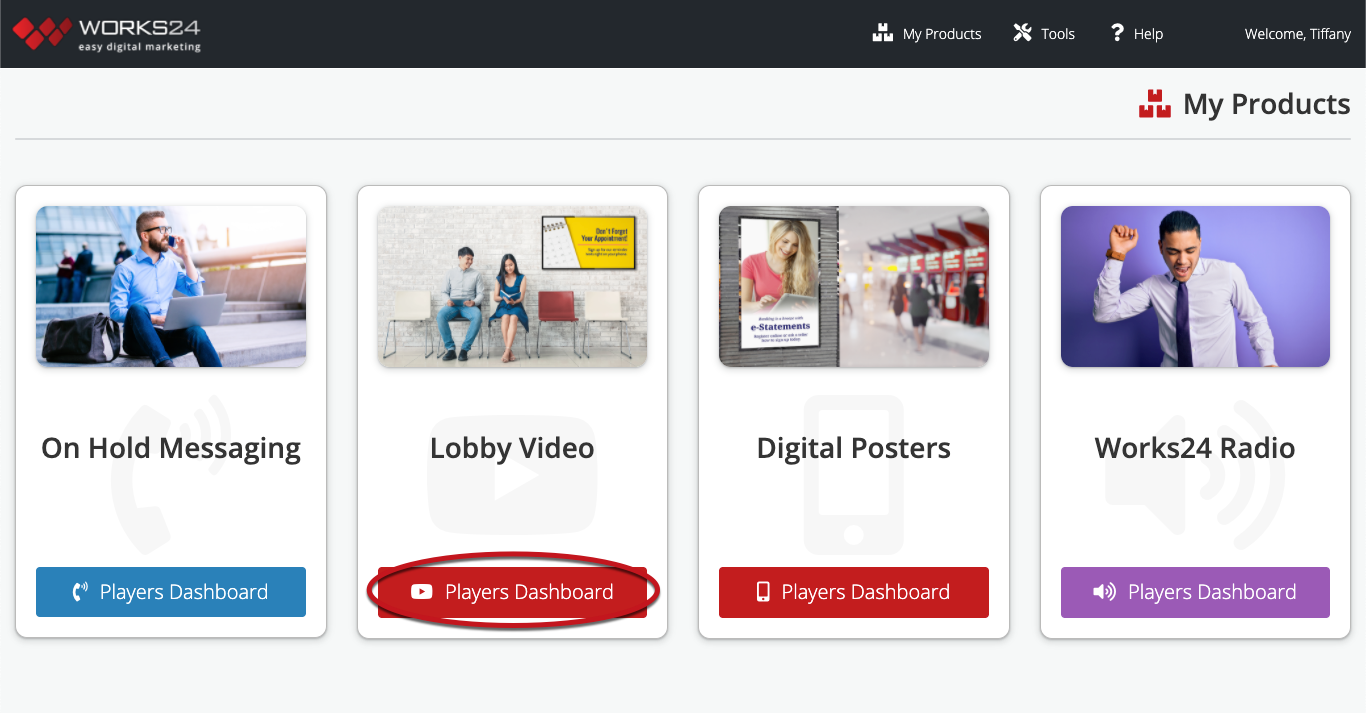
This takes you to the Lobby Video Dashboard. Click the Saved Playlists link at left.

You should now be on the Saved Playlists screen.

Edit and save
For more information about a playlist, click the Details button. You can preview the clips, print a script of the playlist, and view scheduling information.
Watch a playlist by clicking the play button (arrow) in the Preview column.
When you have found the playlist you want, click the Edit button to select the playlist.
Then, simply edit and save this playlist the same way you would a new playlist.