

About adding motion
With the Create24 video editor, you can make images, shapes, and text appear and disappear by applying transitions. You will decide when you want the element to appear, and whether you want it to fade in or fly in to position.
A look at the video editor
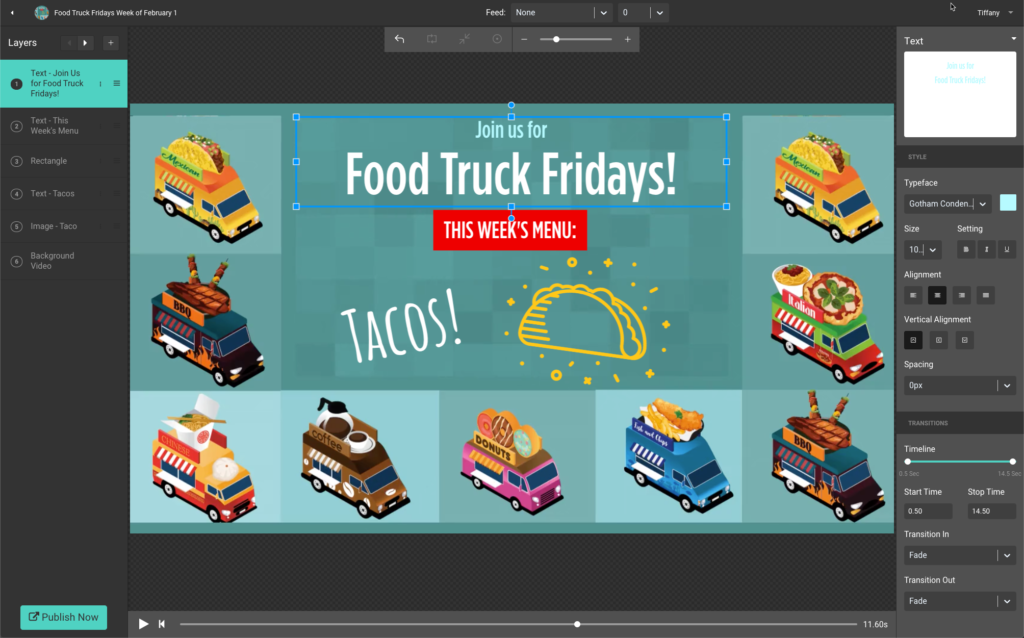
The video editor looks much like the slide editor. The video editor, however, also includes a video timeline at the bottom, and a transitions control panel appears on the lower right when a layer is selected.
Reveal or hide a design element
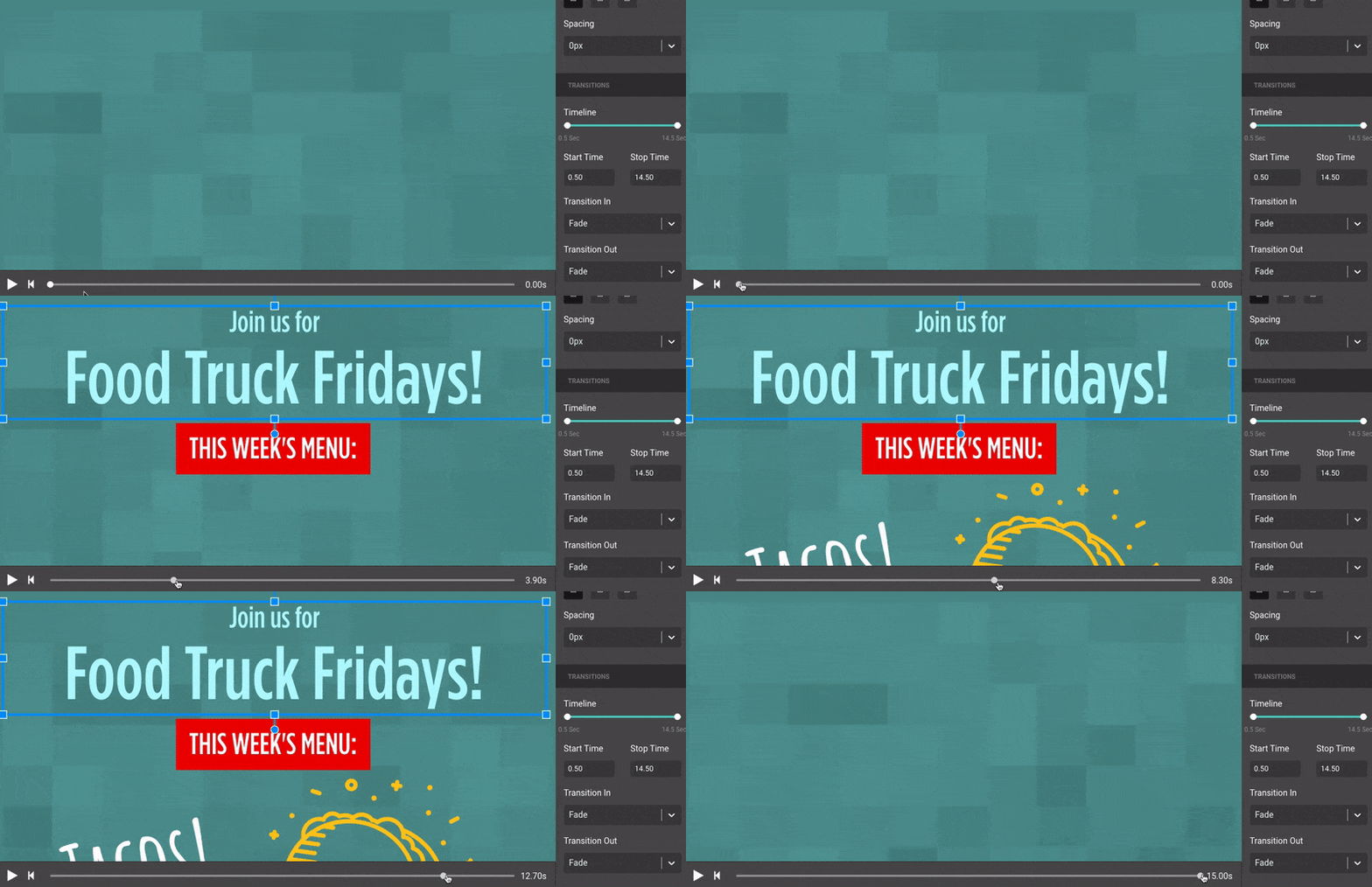
Use the transitions control panel to reveal or hide design elements at different points in the video. You will do this by selecting the layer that contains the text, then setting a start time and stop time for that layer to appear.
Before you create the layer, you may want to advance the video to the point where the layer will first appear, so you can see it in relation to the other items on the screen at that time. Do this using the video timeline at the bottom of the screen. Drag the playhead until you reach a good starting point for your element.

Create the layer and modify the element as needed (add text, resize, rotate, etc.). Drag the element into position.
With the layer still selected, set the Start Time and Stop Time in the transitions control panel. Refer to the timestamp next to the video timeline to get these numbers.
Alternately, you may drag the endpoints of the layer timeline — also in the transitions control panel — into the start and stop positions. Be sure you have the correct layer selected.
Apply transition effects to add motion
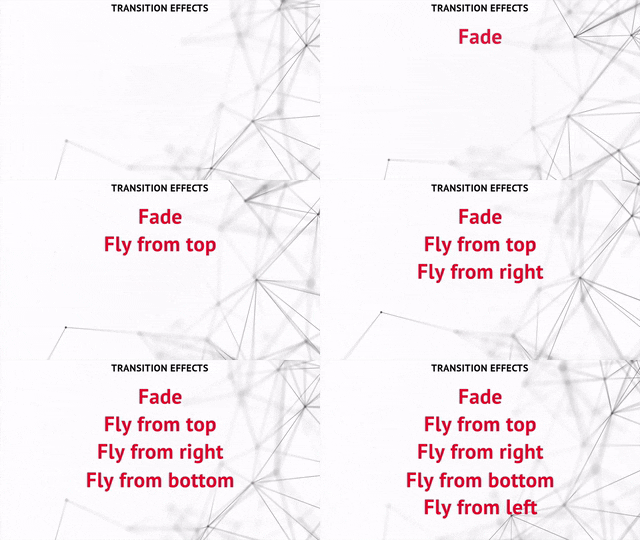
Add motion by using the dropdown menus for Transition In and Transition Out. The options are:
- Fade
- Fly From Top
- Fly From Right
- Fly From Bottom
- Fly From Left
Add more design elements
Continue adding layers with transition effects. Stagger the transition times to make the layers appear in sequence. To make changes, click on a layer and adjust the settings in the Transitions panel at right.
Preview the video using the timeline at the bottom of the screen. Publish when it is complete.