
On the My Products page, click the On Hold Messaging Players Dashboard button.
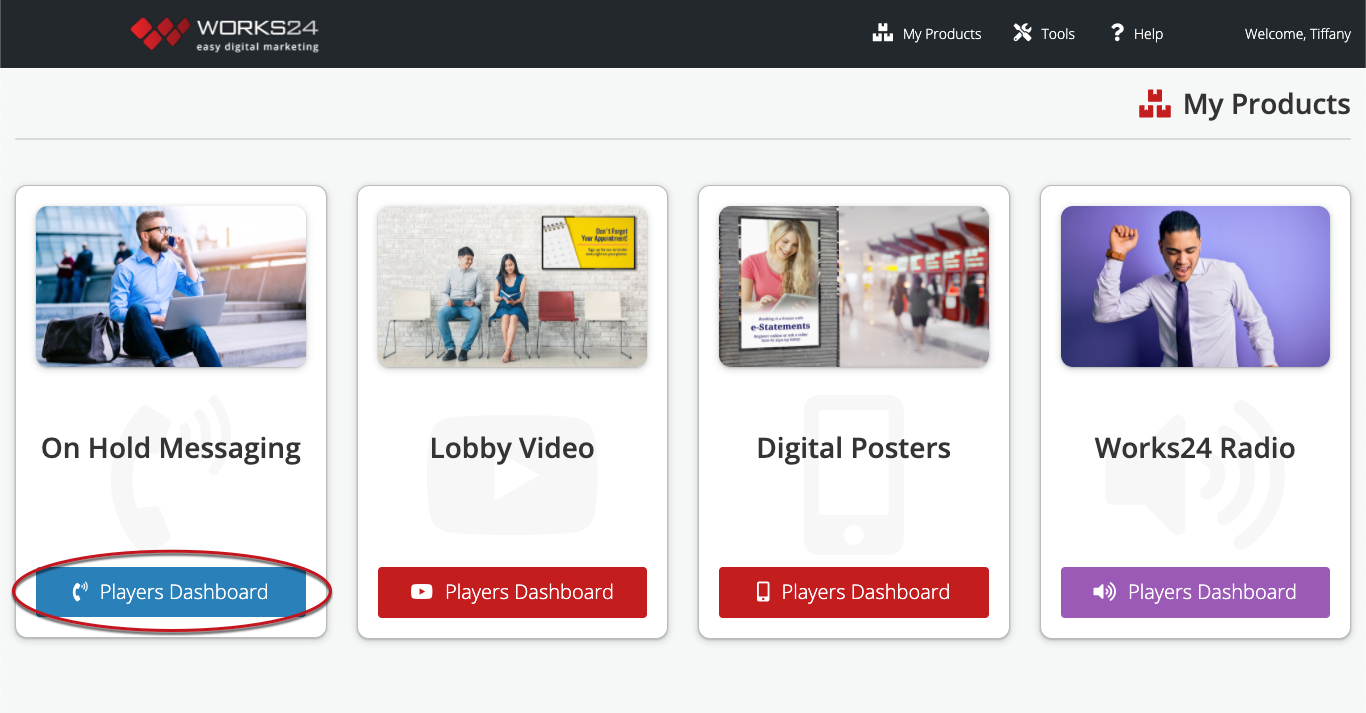
This takes you to the On Hold Dashboard. This is an overview of your company’s on hold players.
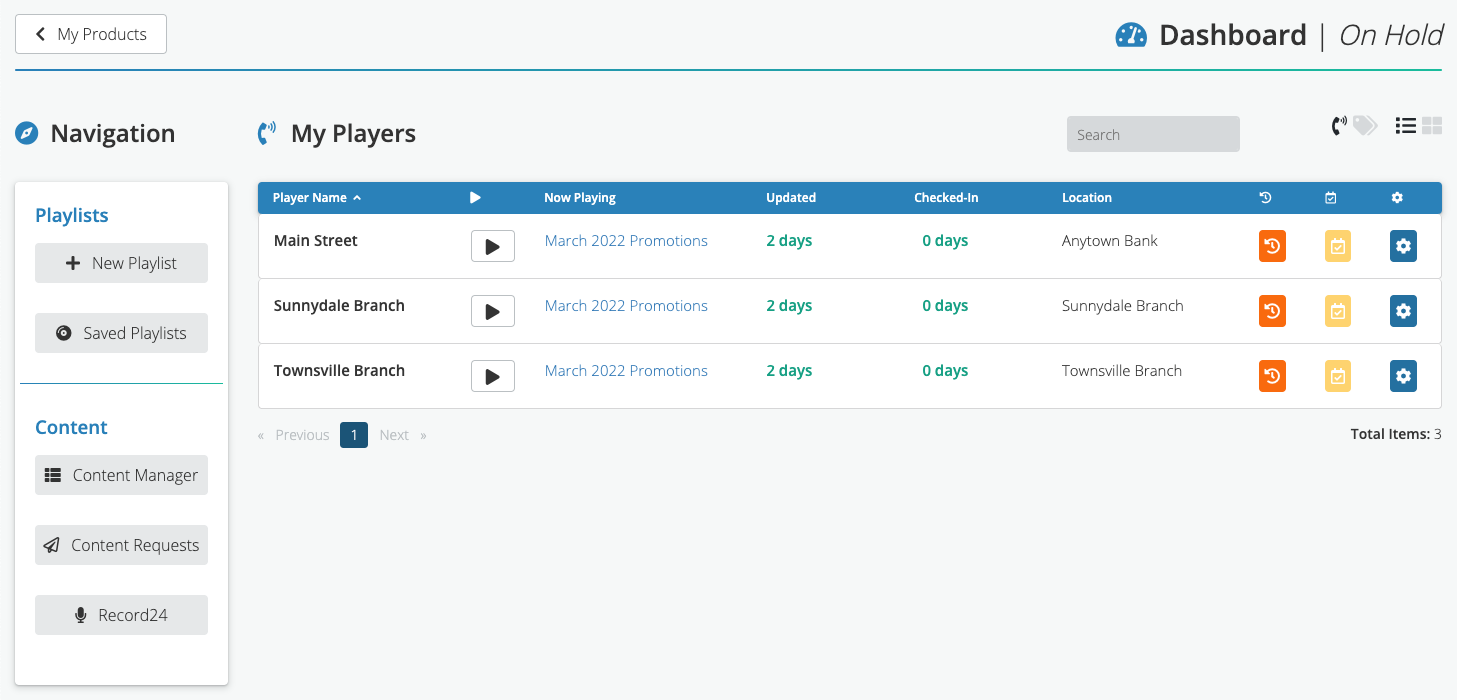
All Players view
Preview
Click the play ( ▶ ) button to listen to your current playlist.
Last Update
The number of days since your playlist last updated.
Checked-In
The last time your player contacted our servers, even if no changes were made.
Actions
History (Orange clock)
A look at this player’s past playlists.
Schedule (Yellow calendar)
A preview of scheduled playlists.
VOIP (Blue gear)
If your company uses VOIP, you can adjust your VOIP settings here.
Groups view
At the top right of the My On Hold Players screen, click the Groups icon to switch to a view of your groups of players.
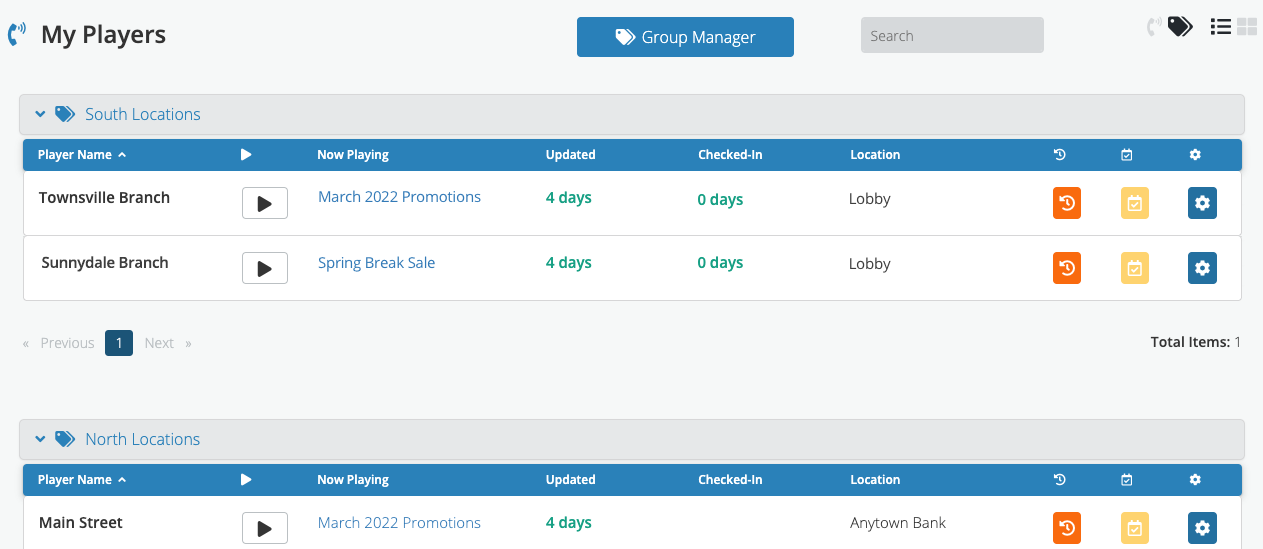
If your players belong to groups, you’ll see them here. If you want to add or change a group, click the Group Manager button at the top.
 Your players are listed on the left, and the groups are on the right.
To create a new group, click the green New Group button, enter a name for the group, and click Save.
To add a player to a group, drag it from the left column to the group on the right. Remove players by clicking the red X icon.