
Get started
Log in to Create24 using the same username/password as you do for the Portal. This takes you to the Content/Templates screen.
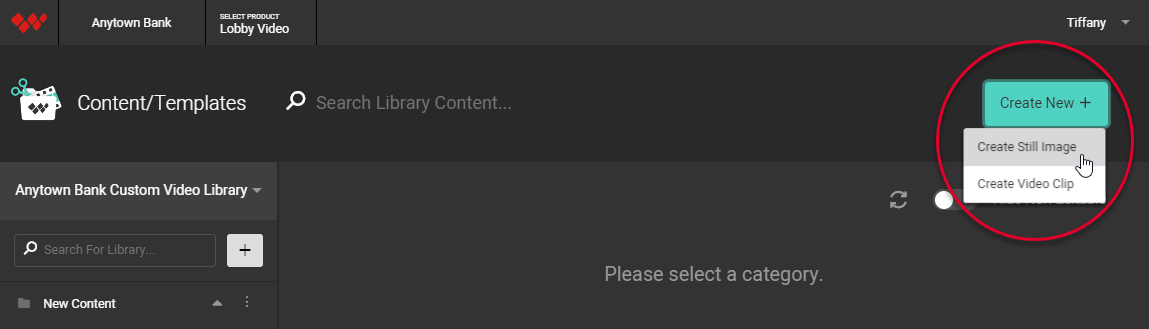
Click the Create New button at the top right corner of the screen, then select Create Still Image.
Choose a background image
Select one of three background options:
- Our image — Click any folder in the content library on the left. Its images appear on the right. Click an image to select it.
- Your image — Upload your own image. In the content library, select My Background Images. Drag and drop up to five files onto the screen, or click the Upload File button. Once uploaded, click the image to select it. Images should be 1280 x 720 pixels.
- Blank canvas — Use a solid-color background by clicking the Blank Canvas button.

Design with layers
Design your slide using images, shapes, and text. Each design element is a separate layer. Learn how to incorporate these elements in Design your slide or video.

Publish your slide
When you are satisfied with your design, click Publish Now.

You will be prompted to name the slide, and pick the library and category where you want the slide saved. Click OK.

The slide will be added to the library and category you designated, but it may take up to 30 minutes to process the slide and make it available in the Portal. You cannot make changes to the design during this time.