


On the Portal Dashboard, select My Tickers from the white toolbar.
Create a new ticker
You should now be on the My Scrolling Tickers page.
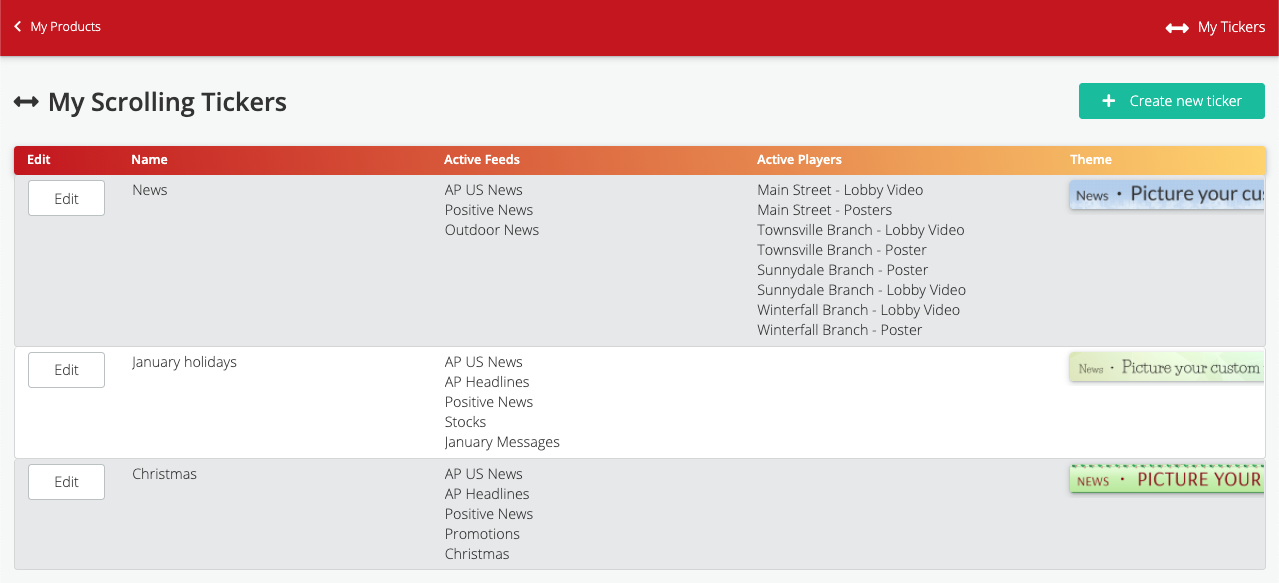
Click the green Create New Ticker button to go to the next screen.
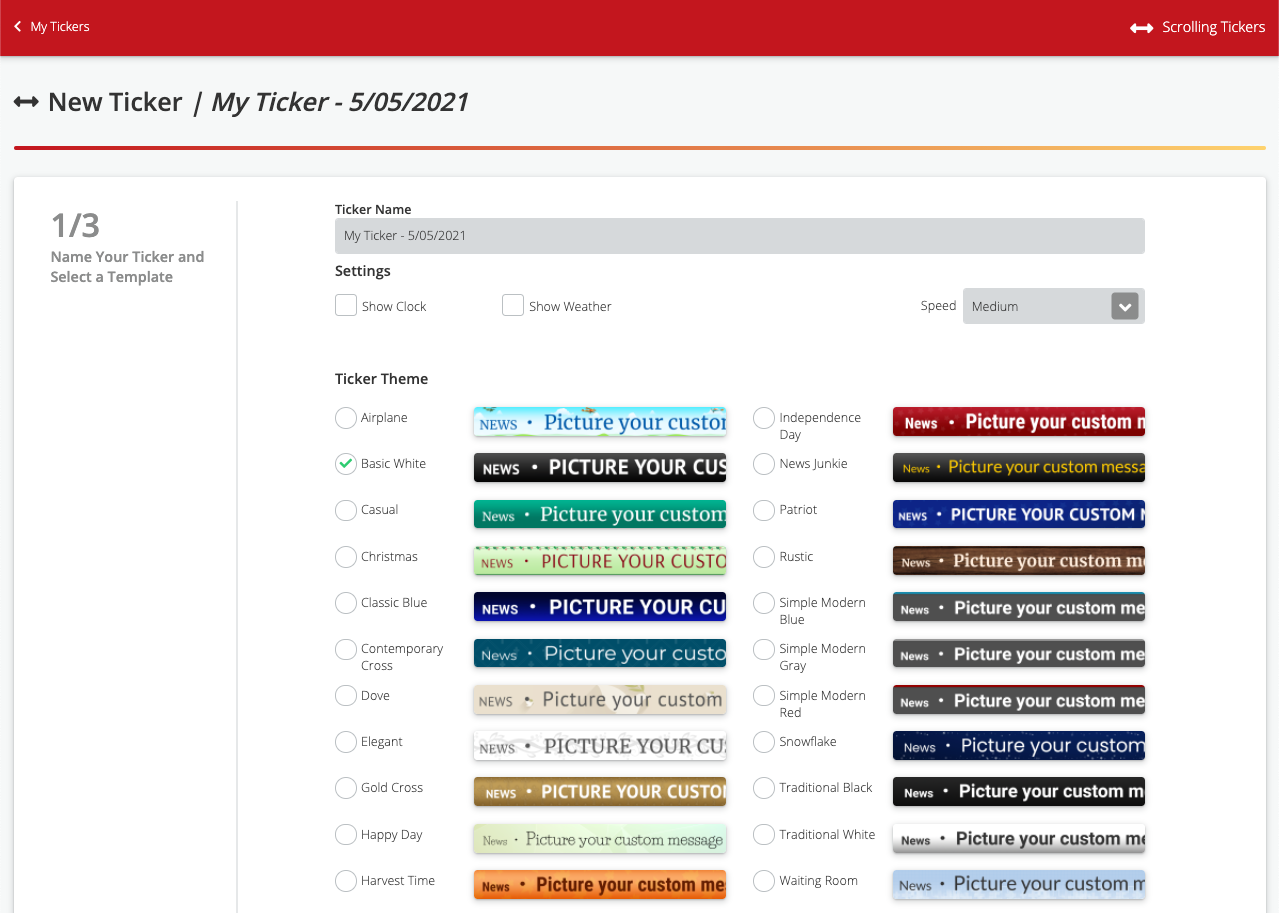
Enter a name for your ticker, then make choices for the following options:
- Show clock — Display the time next to the ticker
- Show weather — Display the local temperature next to the ticker
- Ticker speed — How fast the text rolls by
You will also choose a ticker theme. Once you have made your selections, click the green Select Ticker Feeds button at bottom right.
This takes you to the ticker feed selector.
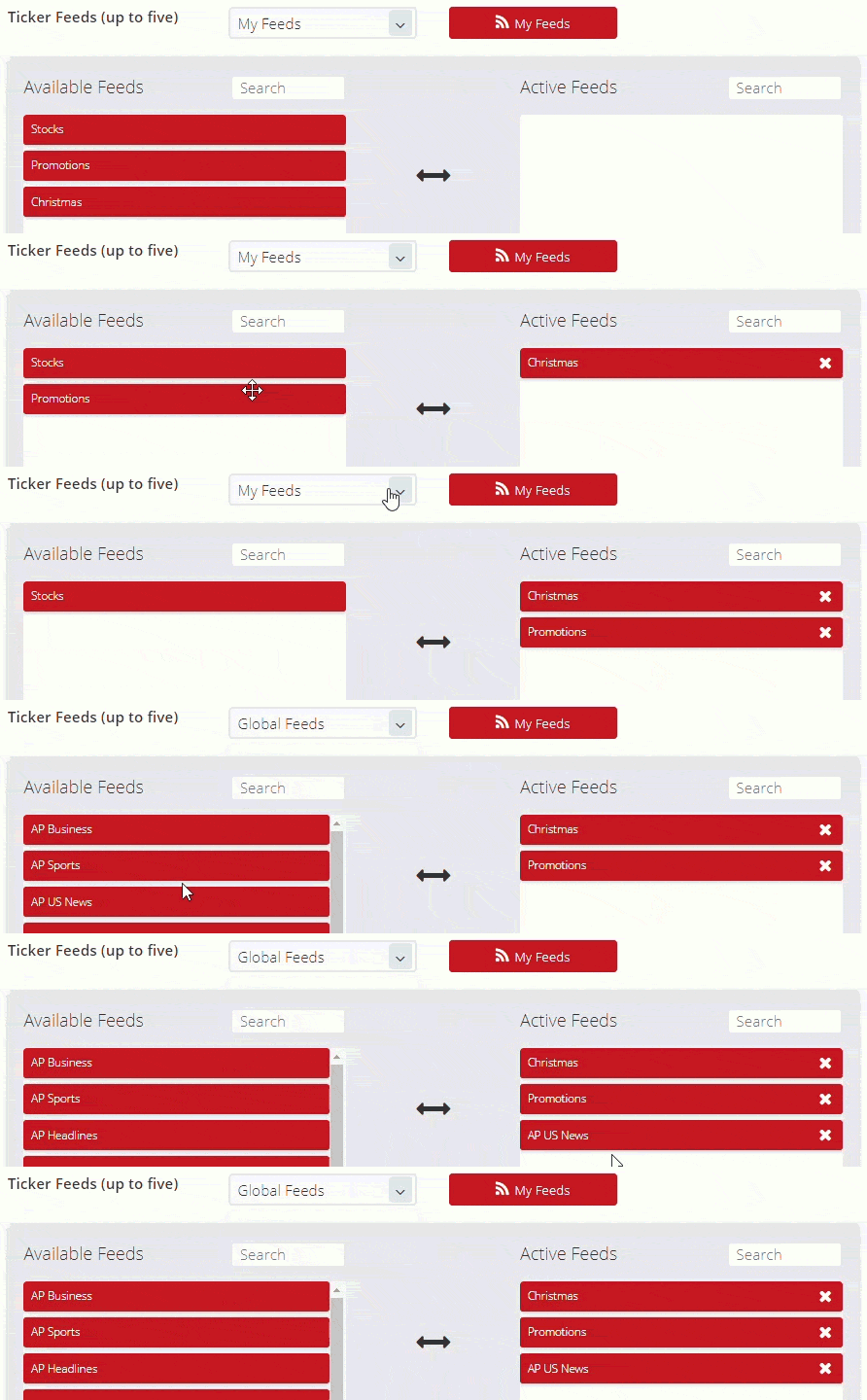
Pick the feeds you want to include on this ticker. Use the dropdown menu to switch between the My Feeds and Global Feeds libraries.
My Feeds — Custom data feeds you have created.
Global Feeds — Our library of news feeds from the Associated Press and Canadian Press.
Drag and drop up to five feeds from the Available Feeds field to the Active Feeds field. Click the green Select Ticker Players button at bottom right.
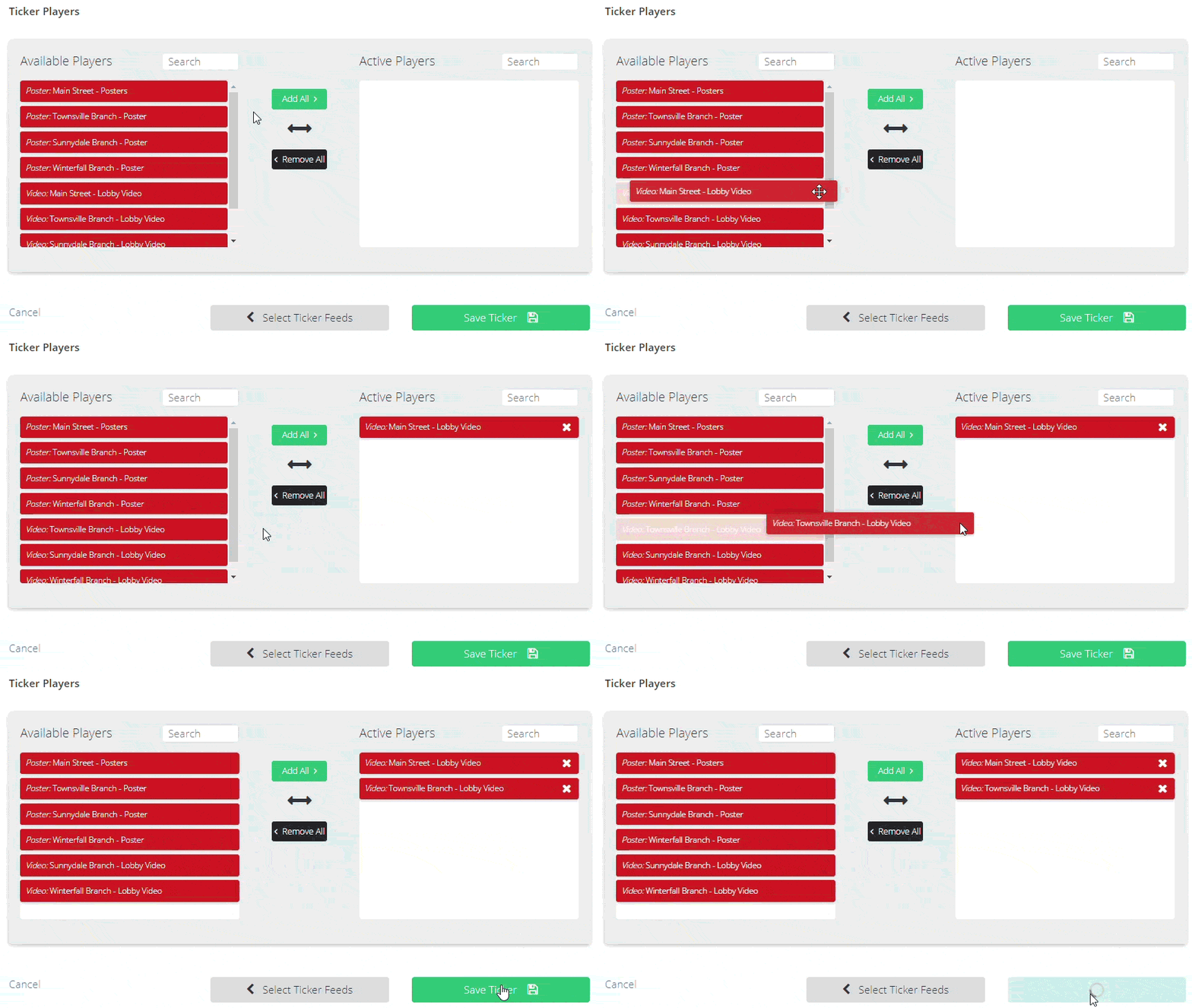
Next, select the locations where you want this ticker to appear. Drag and drop each location from the Available Players field to the Active Players field. Click the green Save Ticker button at bottom right.
Edit a saved ticker
On the My Scrolling Tickers page, click the Edit button next to the ticker. You can make changes to the ticker feeds and the locations where the ticker plays.
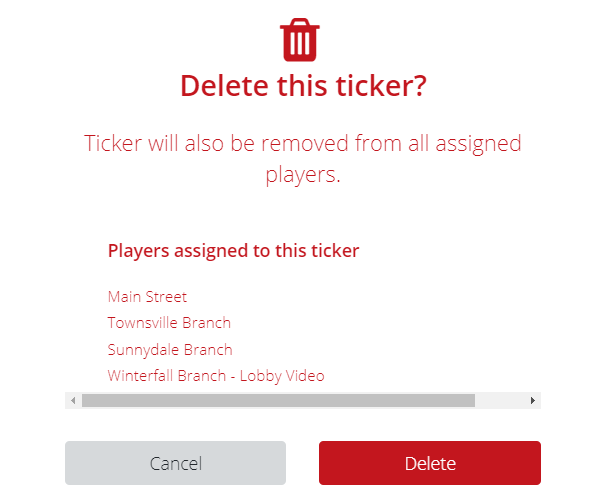
Delete a ticker
From the main ticker page, click the Edit button for the ticker you want to delete. Once in the ticker editor, click the red Delete Ticker button at bottom left. A popup will appear asking if you are sure you wan to delete the ticker. Select Delete.