About the On Hold Content Manager
In the On Hold Content Manager, you can:
- Organize your messages
- Delete (and restore) messages
- Upload pre-recorded sound files
Access the Content Manager
On the My Products page, click My On Hold Players.
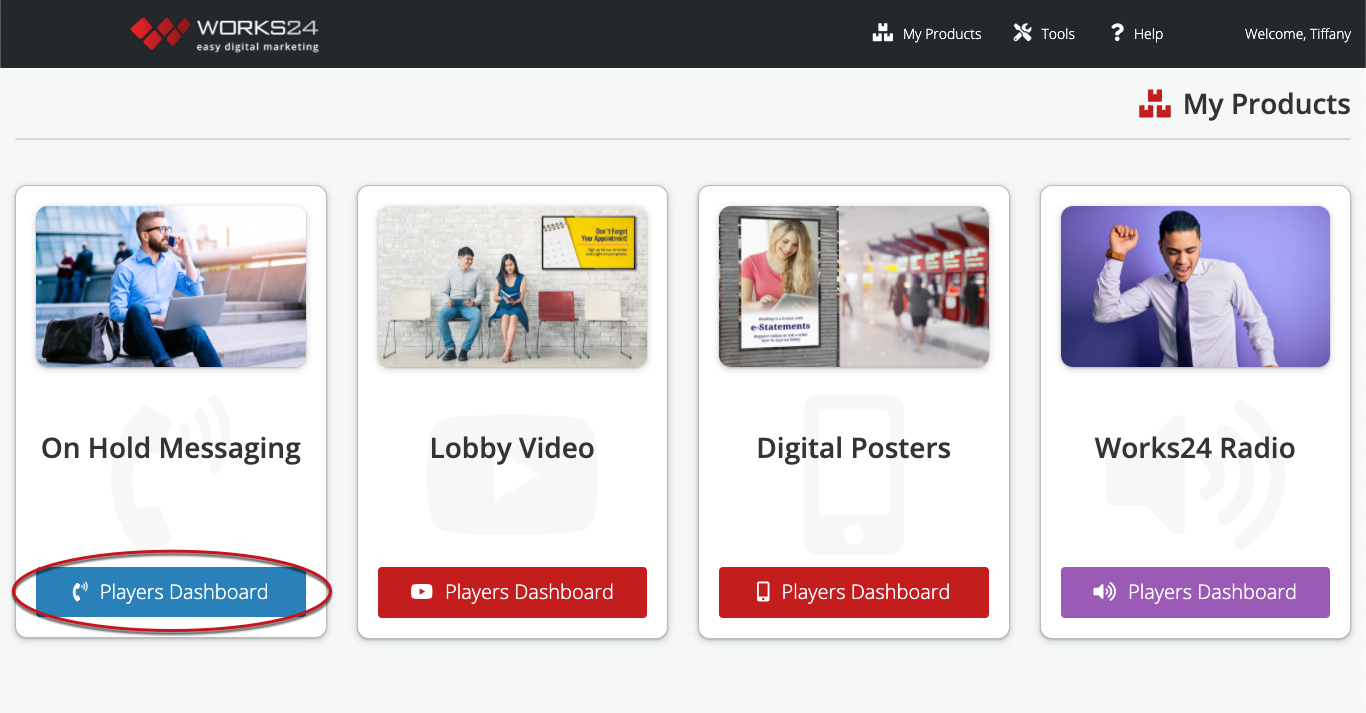
This takes you to the On Hold Dashboard.
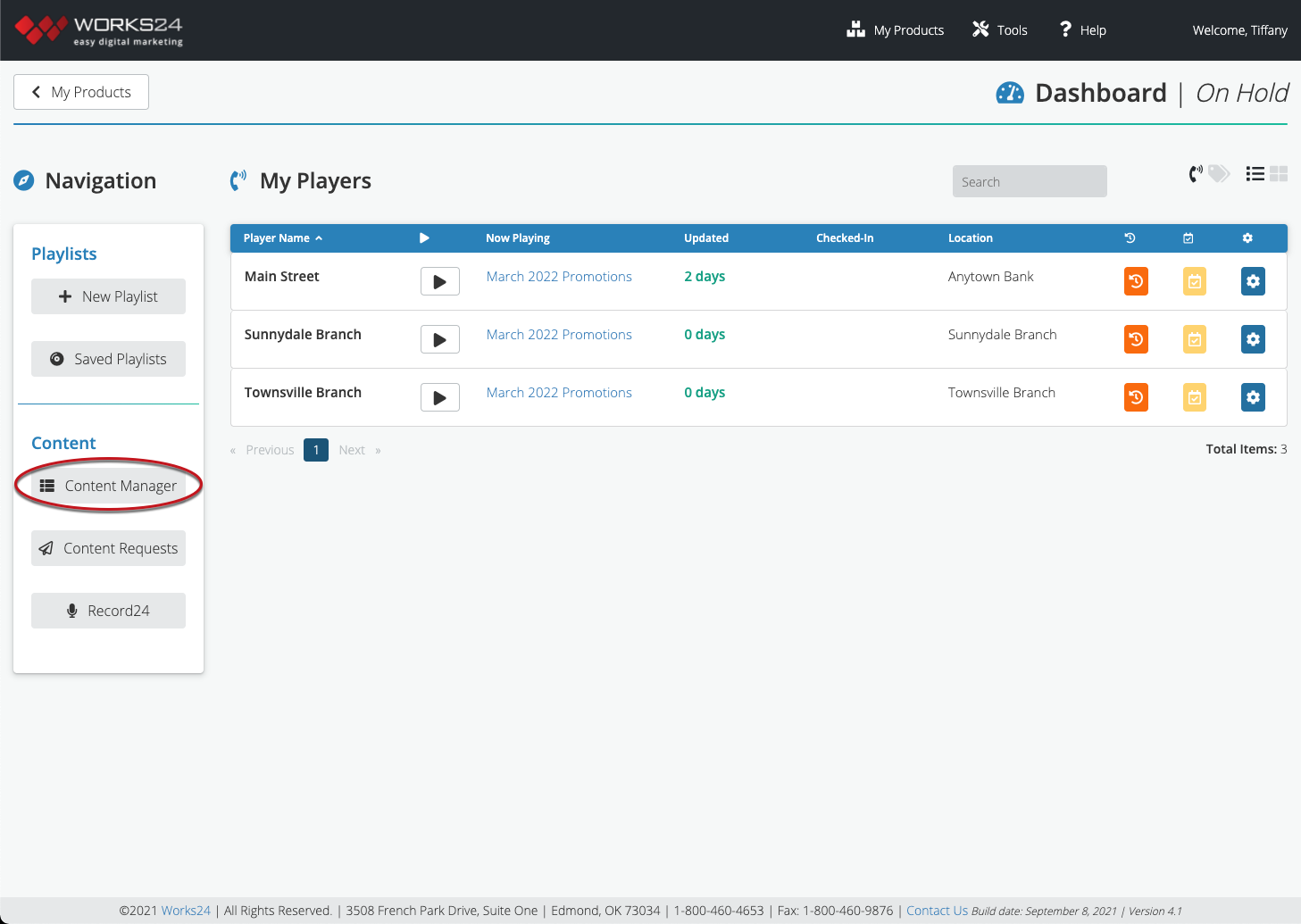
Click the Content Manager button on the left.
Organize messages
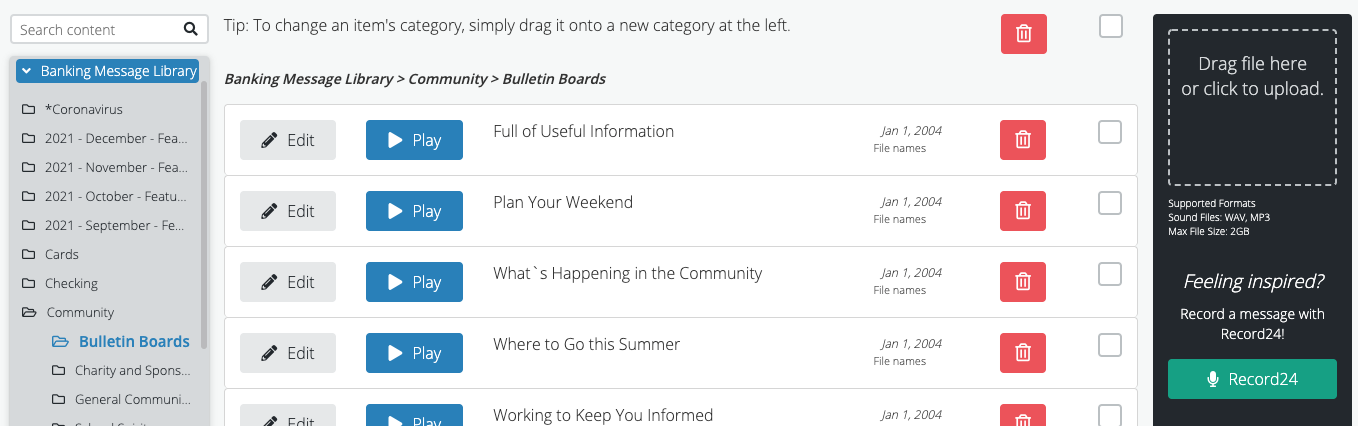
To add a category to a library, hover over the library name and click the “+” button.
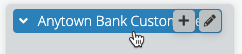
To change the name of the library or a category, click the pencil button.
To move a message, click on it and drag it to a different category.
To move multiple messages, click the checkboxes to the right of those messages. A dropdown menu appears at the top of the list. Select the category and subcategory, then click the Move to Category button.
Edit message
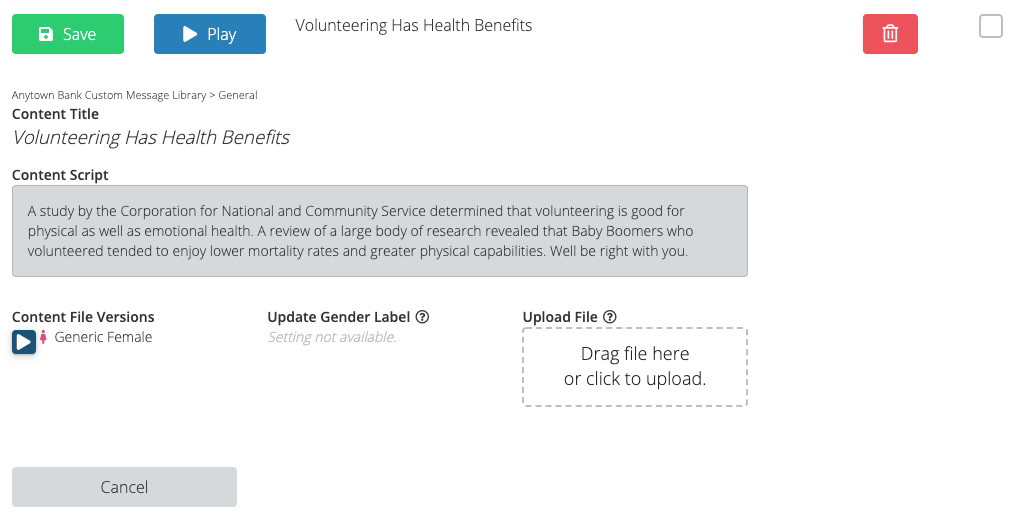
To edit a message title or upload an additional version of the message, click the Edit button. You can upload other versions of the same message, such as those recorded by different voice artists.
Delete (and restore) messages
To delete messages, click the red trashcan. If you decide later that you would like to use a message that you deleted, don’t worry. Click the gray trashcan icon at the top of the list to reveal the deleted messages. Then click the circular arrow button next to a message to restore it.
Upload pre-recorded messages
You can upload .mp3 or .wav messages to the library. The size limit for these files is 2GB.
Drag the file from your desktop to the File Uploader (the black box at right), or click the File Uploader area to find the file on your computer.
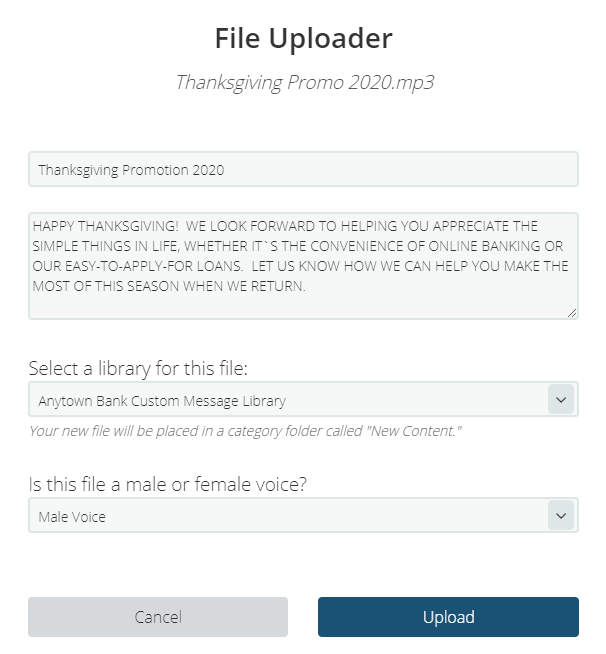
When the File Uploader window appears, complete the Title and Script fields. Select the library where you want to store the message. Select Male or Female voice.
Click Upload. The new file will be placed in a folder called “New Content” in the library you selected.