
Start a new project
From the Create24 Dashboard, click Get Started under Create New Image.
This takes you to the Content Browser to pick a background.
Choose a background image
From the Content Browser, you can upload your own background image, pick one from our content library, or start with a blank canvas.
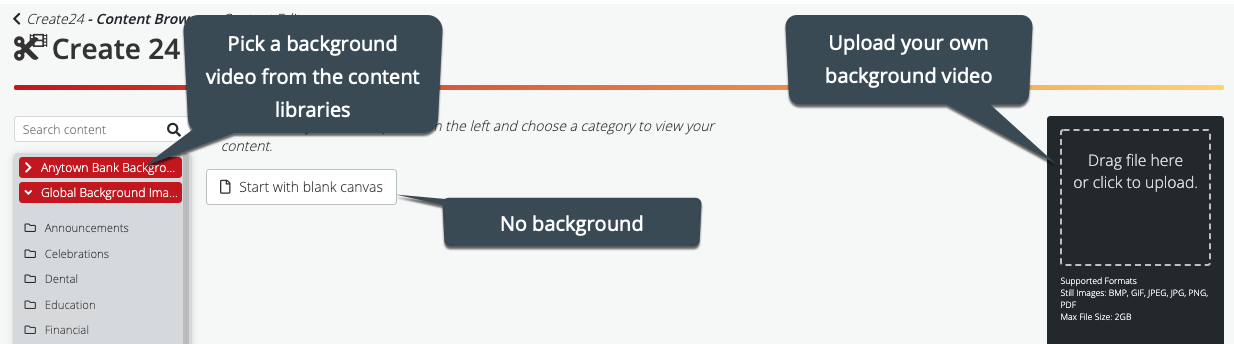
Use one of our images
To select an image from the content library, click any folder on the left to browse. Click Select to open the image in the editor.
Use your own image
Add your image to the content library with the content uploader on the right side of the screen. Drag-and-drop the file onto the uploader, or click inside the box and navigate to the video file on your computer to upload it.
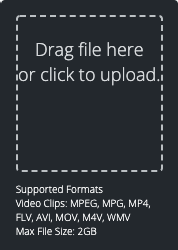
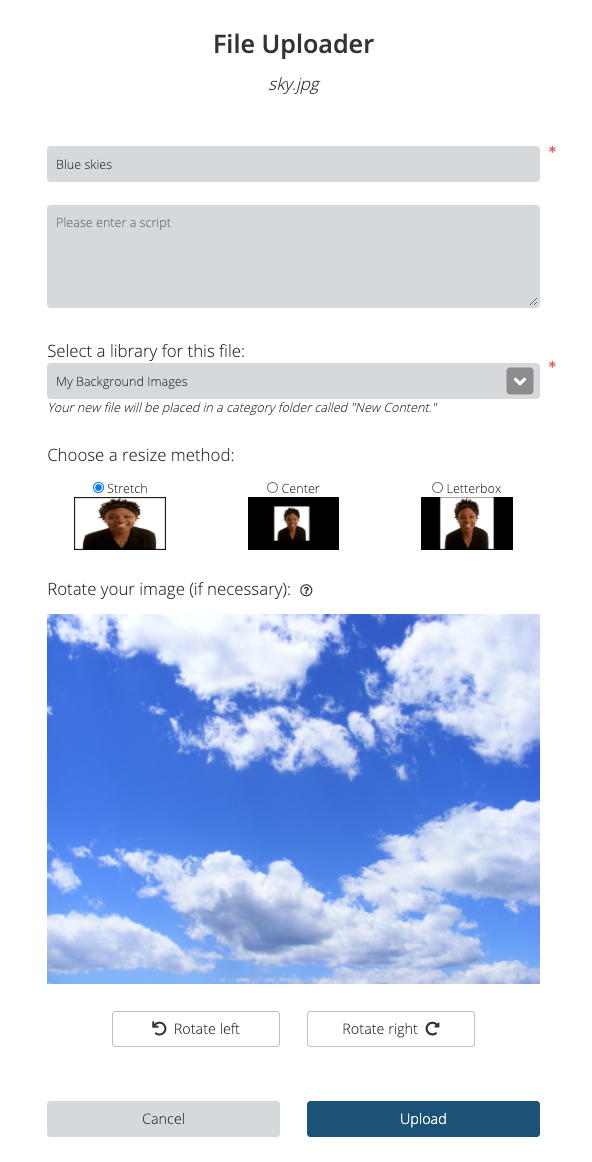
When prompted, enter a title for the video background and, if desired, enter a script. Select the content library where you want it saved.
Choose how you want the image resized if it does not exactly match the dimensions of the screen. You can also rotate the image.
Click Upload. Depending on the size of the file and your internet connection, it could take up to half an hour to upload.
After the background image uploads, you will find the file in the New Content library on the left.
Click Select to open the image in the image editor.
Design your image
Add text, images, and shapes to your background image.
Save to your video library
Once you’re happy with your image, click the Save to Library button at the bottom right. (You may need to scroll down the panel on the right to see this.) Give your image a title, add a script if you want to, and select a library.
Add your image to a production
Return to the Works24 Portal to incorporate the image you just made into your next lobby video production!