
 Feed item (From Portal) |
+
|
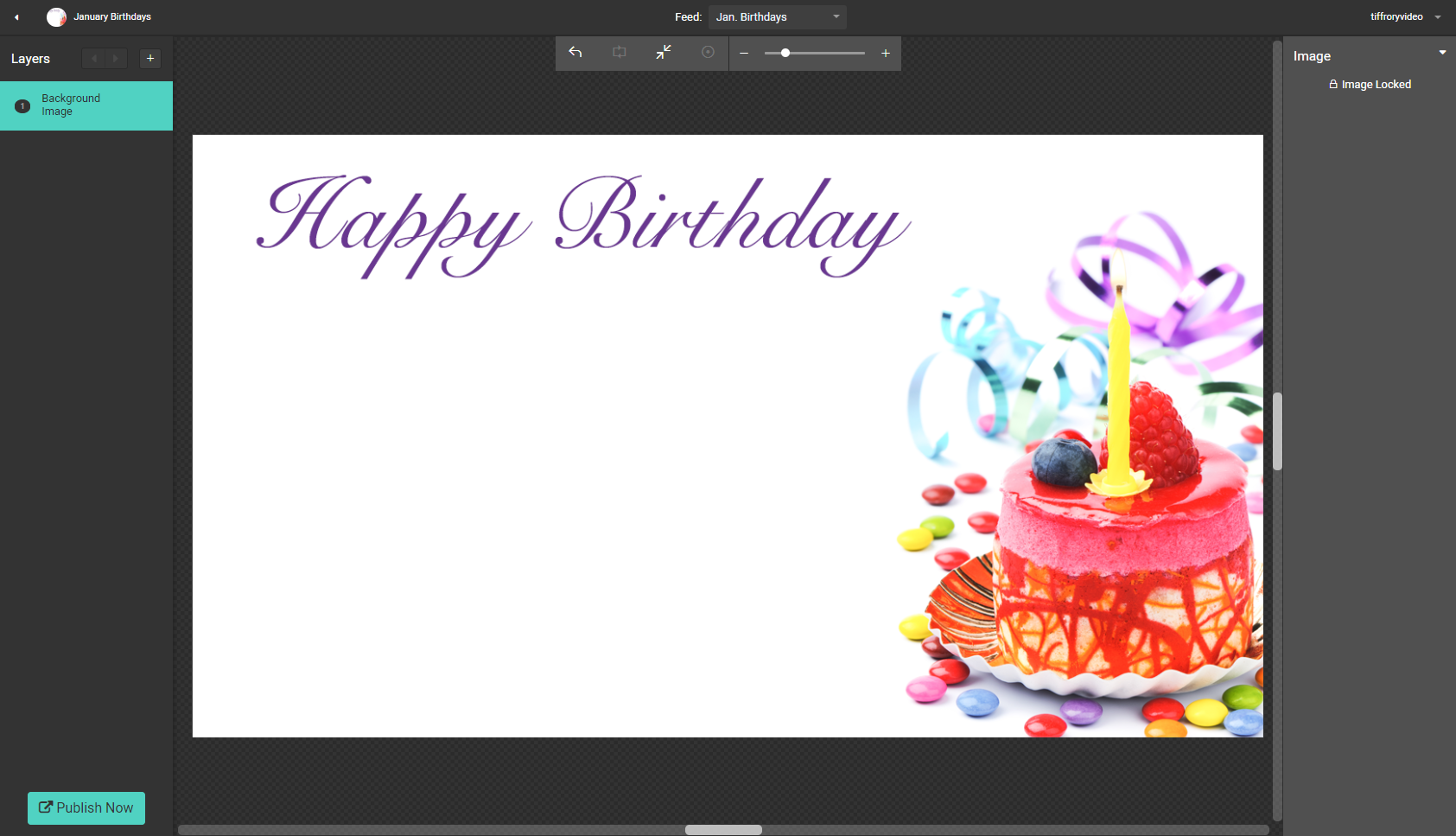 Template (From Create24) |
=
|

Slide or video clip |
About custom feeds
A feed is a group of text items or images that you have selected to appear on screen. Your video player incorporates each item into a custom clip, a screen layout, or scrolling tickers.
The content is displayed over a background template. What can you do with a feed?
- Wish employees “Happy Birthday,” with each person’s name, birthday, and picture displayed over a background image of a birthday cake.
- Display the latest stock prices.
- Run announcements in a ticker at the bottom of the screen.
- Display ads for this month’s promotions in a still image next to your regular video production.
- … and much more!
Feeds may include content provided by Works24 — such as stocks and headlines — or content you provide.
There are two parts to a feed: the feed content and the feed display.
- Feed content — covered in this article — is managed in the Works24 Portal.
- Most feed displays, including image and video templates, are built in Create24.
Types of feed content
There are four types of data feed content:
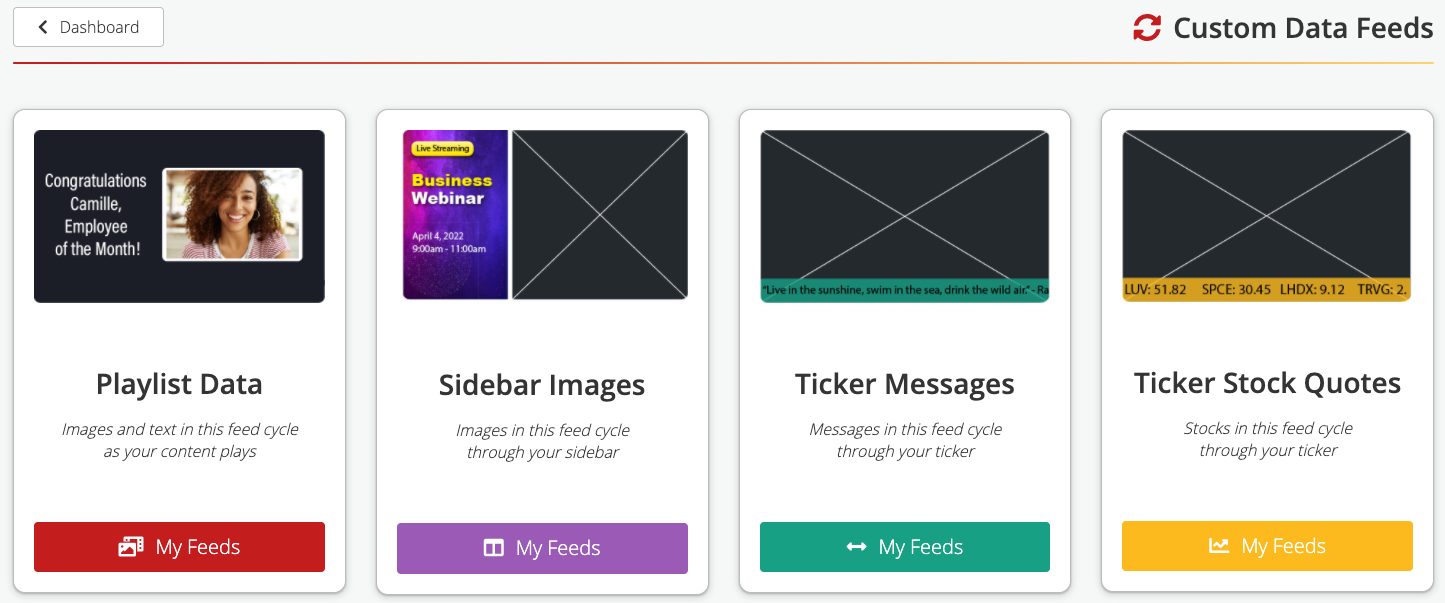
- Playlist data: Your text and images, to be displayed on still images and video clips
- Sidebar images: Images that will appear in a secondary content area when you have applied a screen layout
- Ticker messages: Your custom text, to be displayed in the scrolling ticker
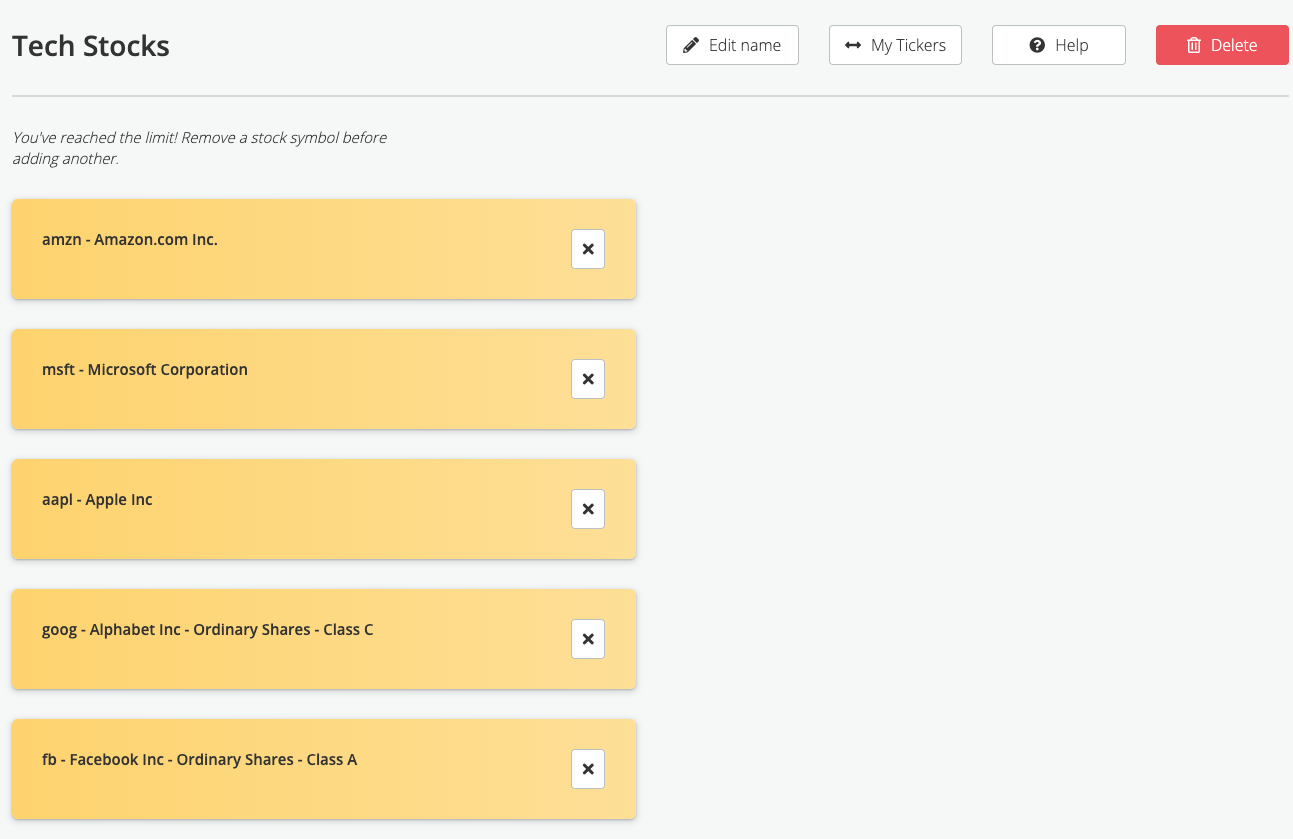
- Ticker stock quotes: Up to five stock symbols you choose, to be displayed on still images and video clips or in the scrolling ticker
Creating a data feed
From the Lobby Video dashboard, click the My Feeds button on the left.
This takes you to the Custom Data Feeds dashboard. The next steps are slightly different for each type of feed.
Create a playlist data feed (your text and images)
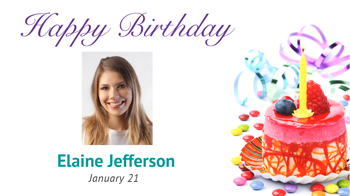


Save time by adding a feed to a video playlist. Your content is displayed in slide and video templates you build in Create24. Some uses for playlist data feeds include:
- Birthdays
- Upcoming events
- Classified ads
- Holiday promotions
- Menus
On the Custom Data Feeds Dashboard, click the My Feeds button under Playlist Data.
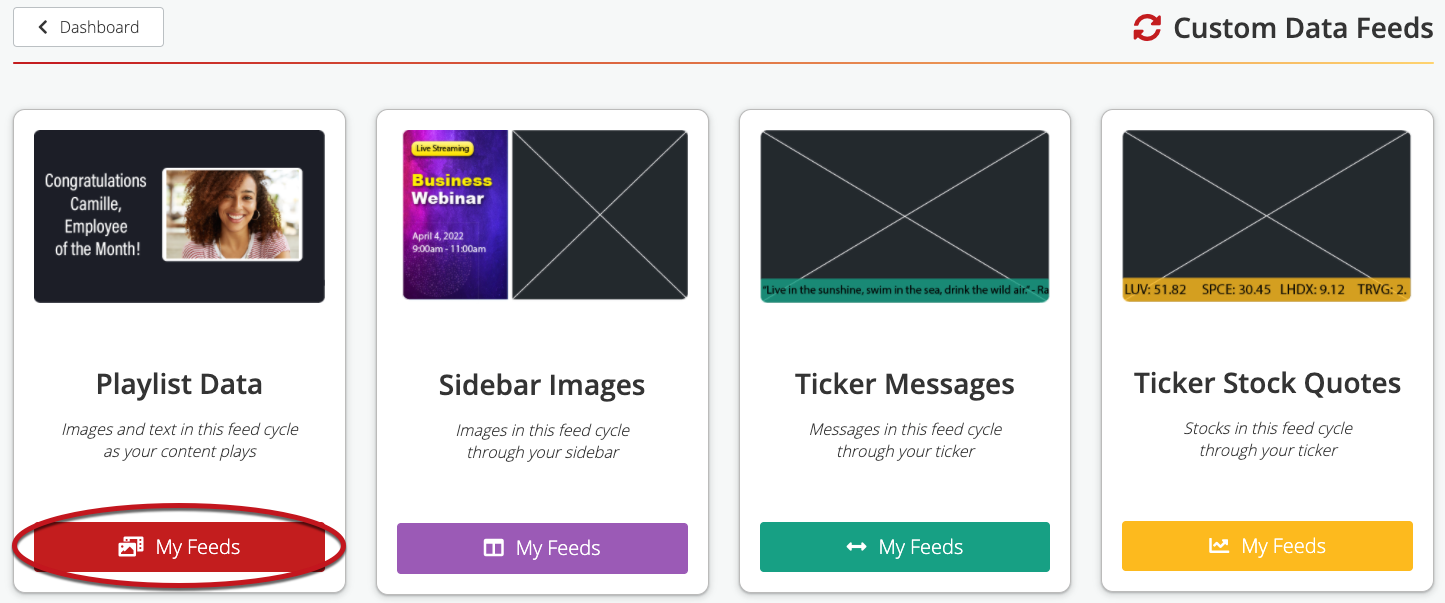
This takes you to the Playlist Data Feeds screen.
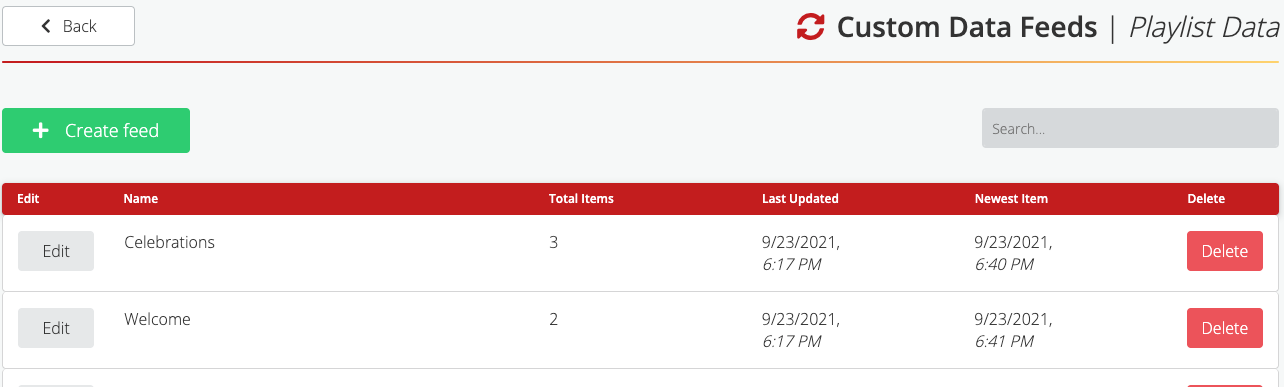
Click the green Create feed button. This opens a new feed screen.
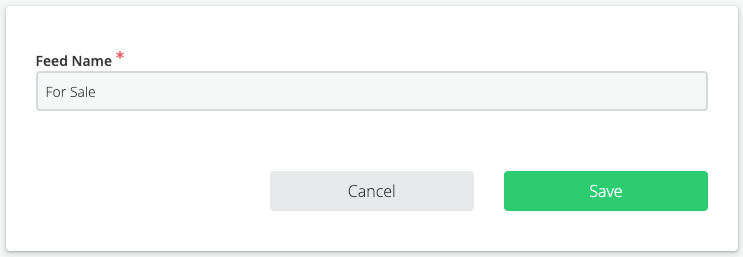
Enter the name of the feed and click Save. This takes you to the data feed screen.
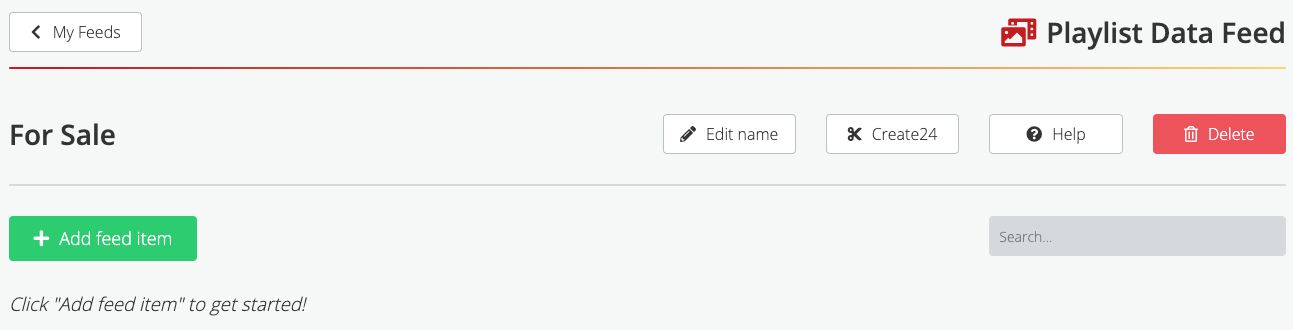
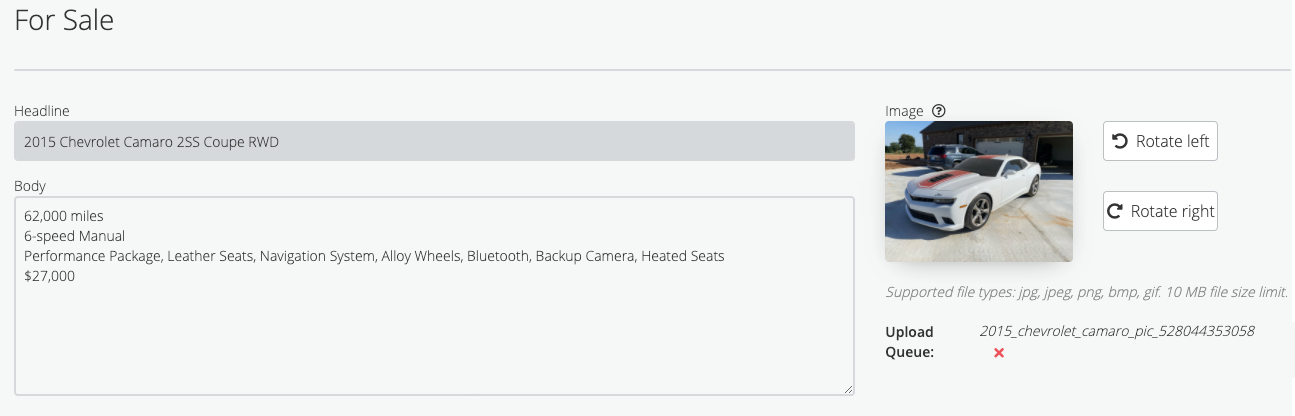
Click the Add feed item button. On the New Feed Item screen, enter your headline and body text. Upload a picture, if you want.
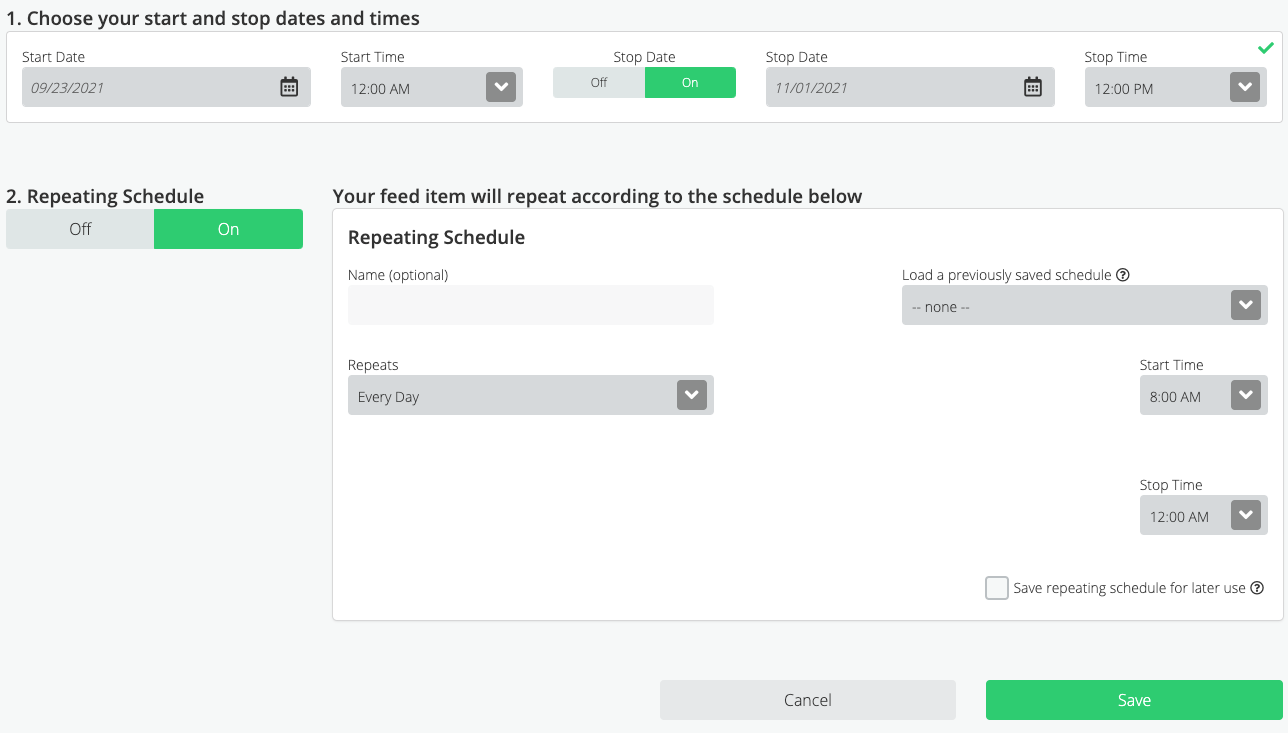
At the bottom of the page, you can select a start and stop date for the feed to be displayed. You can also schedule the feed item to appear regularly on a specific day, month, or year by switching on Repeating Schedule.
Click Save Item.
Once you have entered all of your feed items, build a template for the feed in Create24. Once you save the template, the slide or video will appear in your content library for use in playlists.
Create a ticker stock quotes feed
On the Custom Data Feeds Dashboard, click the Ticker Stock Quotes My Feeds button.
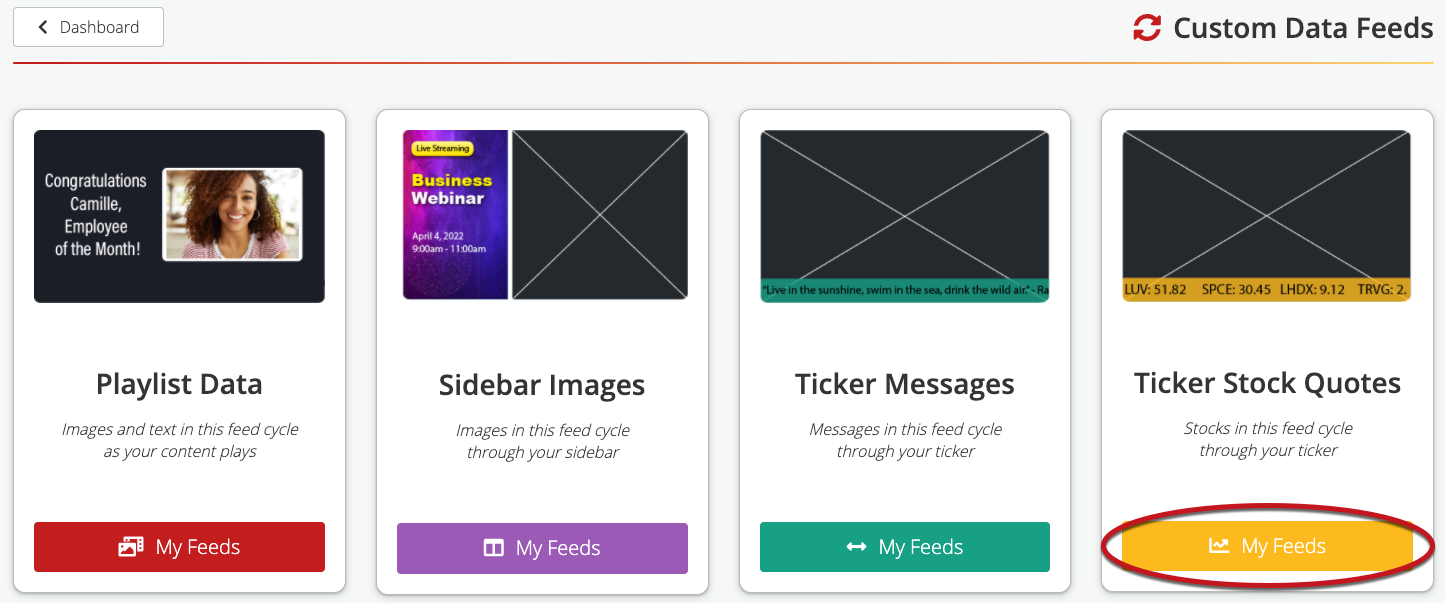
This takes you to the Ticker Stock Quotes screen.
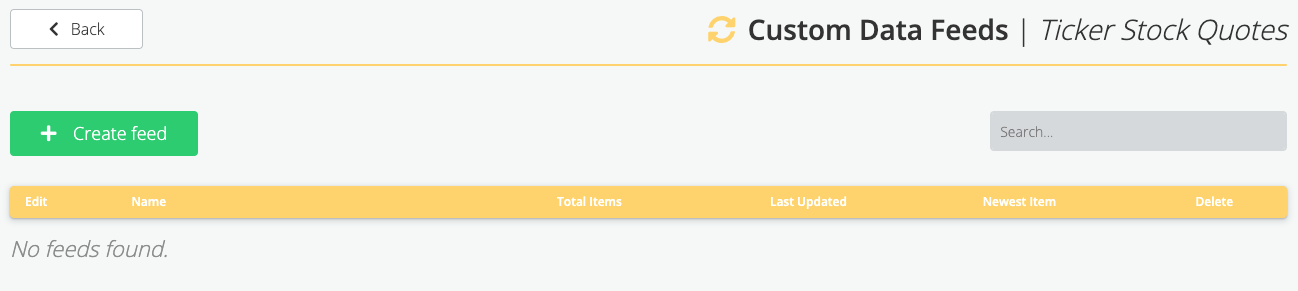
Name your feed and click Save.
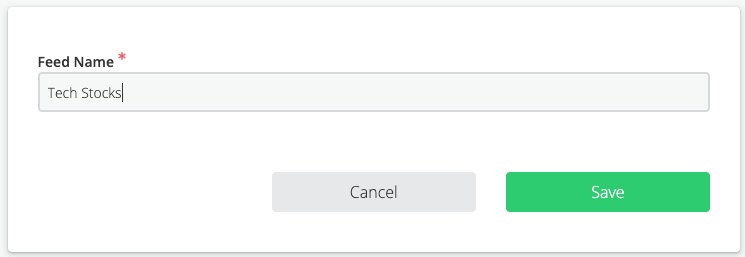
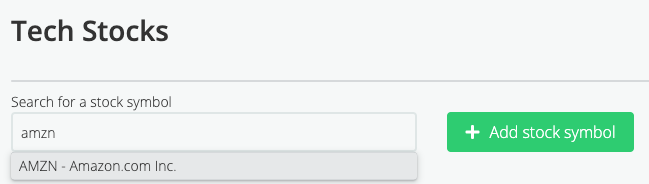
On the next screen, enter a stock symbol into the Search for a stock symbol field. Once you find the symbol, click Add stock symbol.
The stock appears below. Repeat for up to five symbols.
That’s it! The feed will be added your list of available feeds. When you create a scrolling ticker or an image template, you’ll be able to select this feed.
Create a ticker message feed
On the Custom Data Feeds Dashboard, click the Ticker Messages My Feeds button.
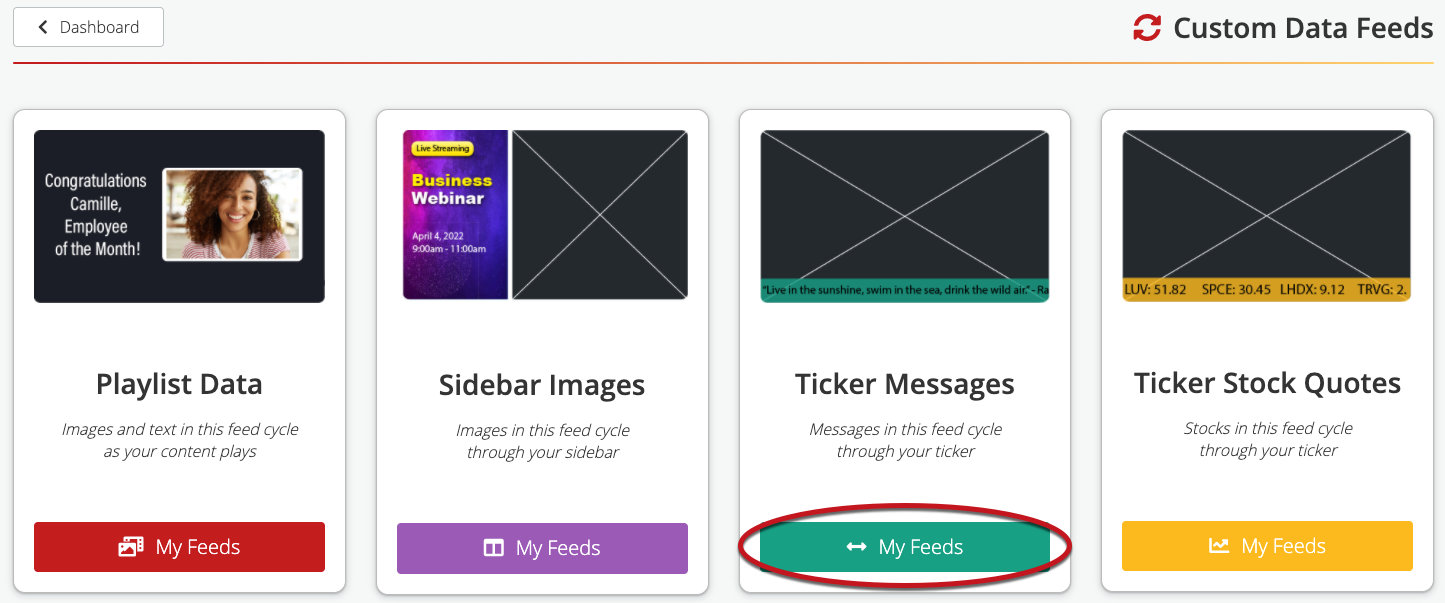
This takes you to the Ticker Messages screen.
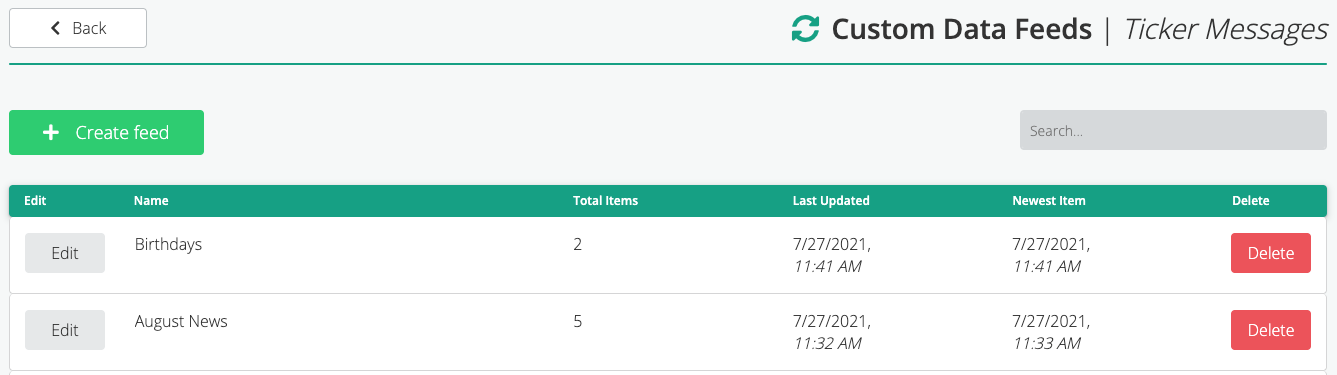
Click Create Feed, then name your feed.
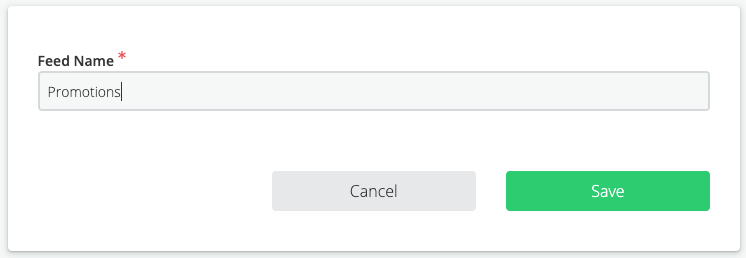
Click Save. This takes you to the Ticker Messages Feed screen.

To add content to the feed, click the Add feed item button.

Enter a message, then set the start date and end time for this item. You can also set a Repeating Schedule, as described above in the Playlist Data Feed instructions.
Repeat these steps for each feed item.
Once your feed is complete, create a scrolling ticker to incorporate these feeds into your video.
Create a sidebar images feed
This places an image in the sidebar area next to your video production. (Note: Previously, this was called a “widget.”)
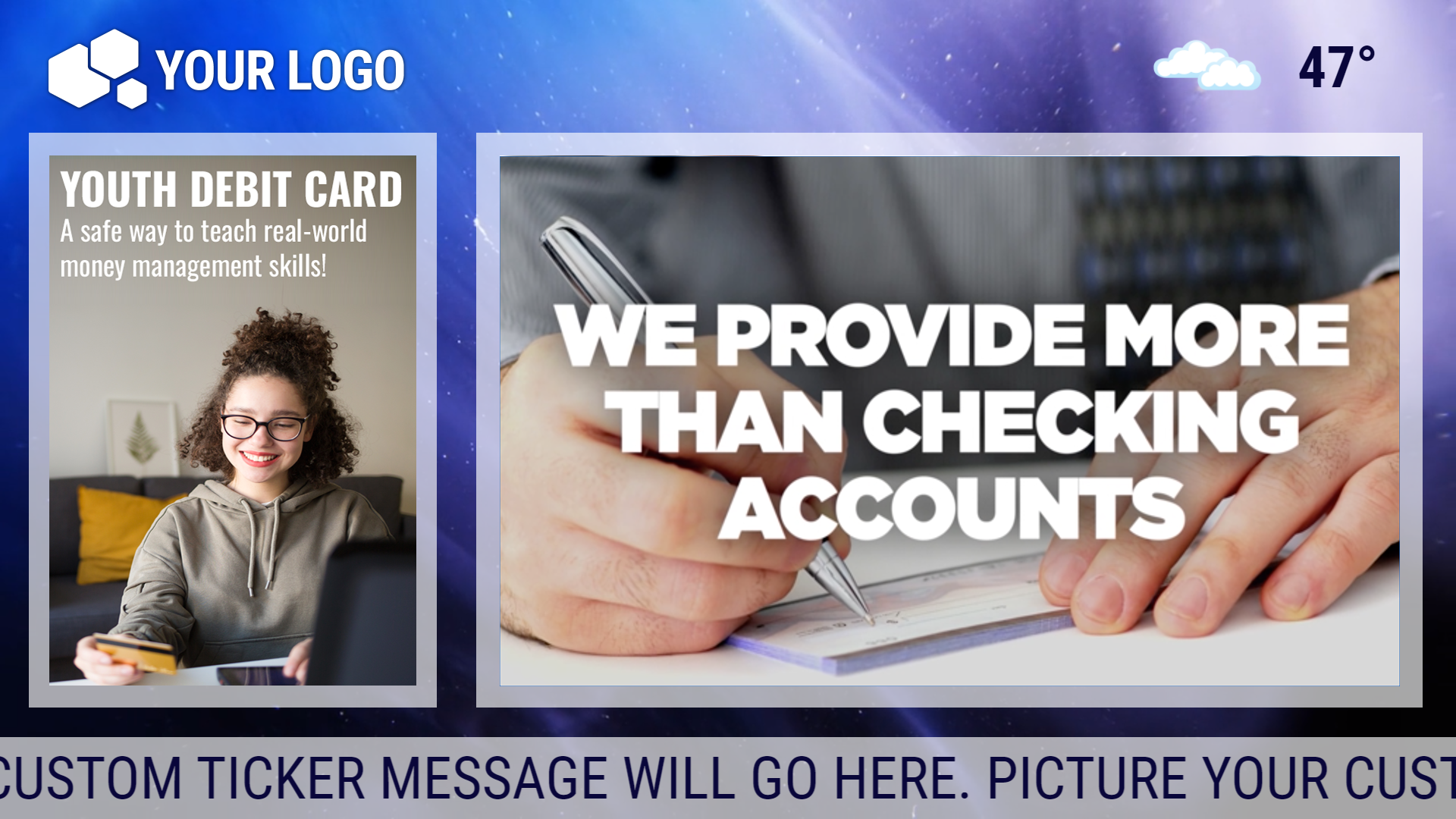
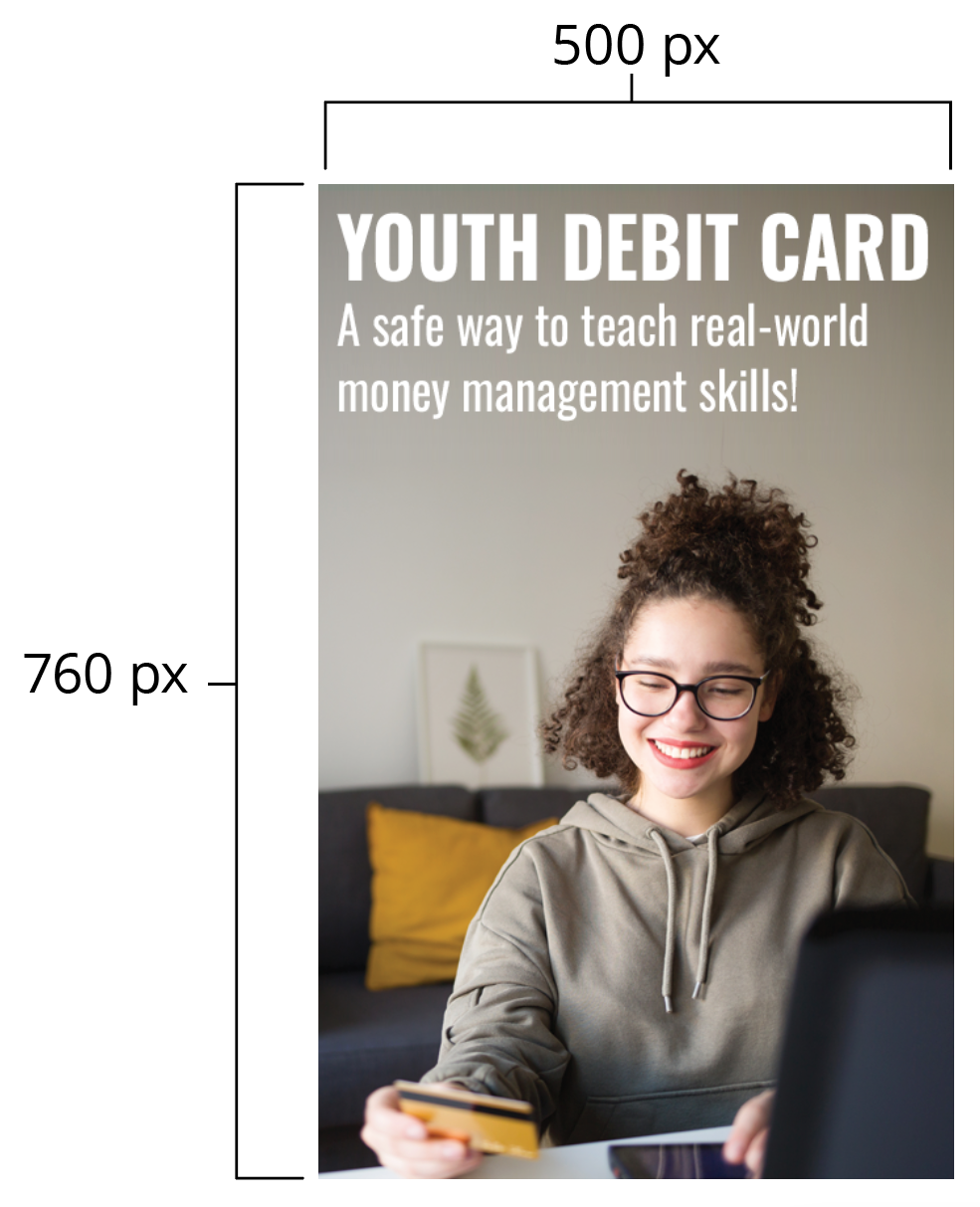
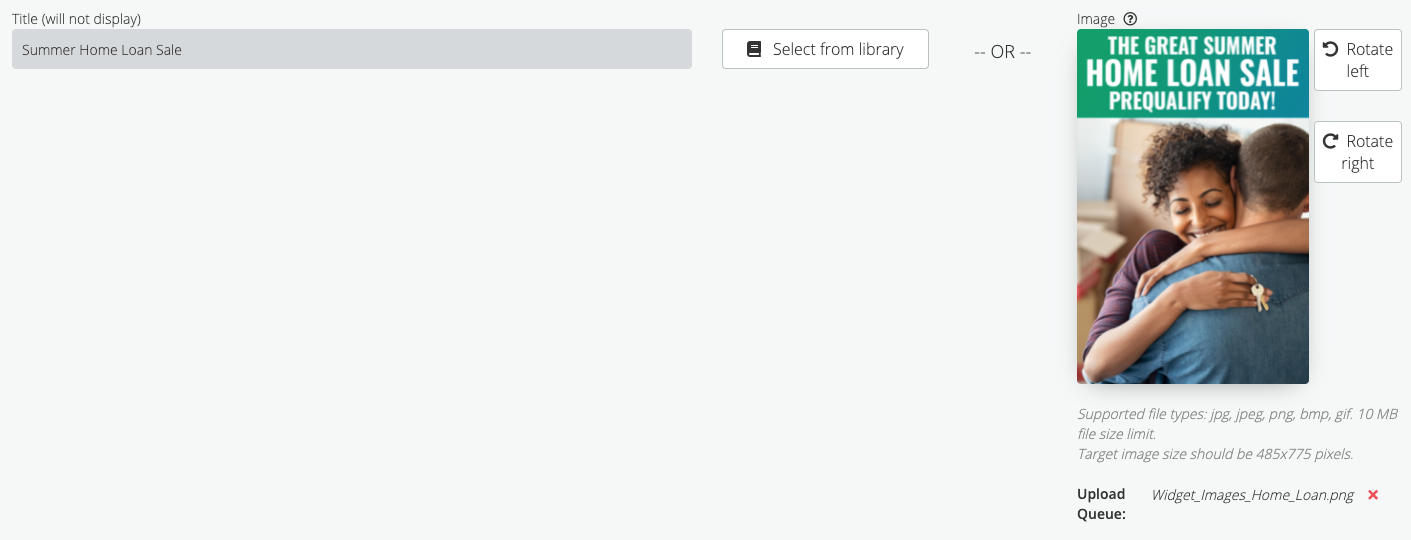
The recommended dimensions for sidebar images are 500 pixels wide by 760 pixels tall. (Images will be enlarged or reduced to fit this size.)
On the Custom Data Feeds Dashboard, click the Sidebar Images – My Feeds button.

This brings you to the Sidebar Images screen.
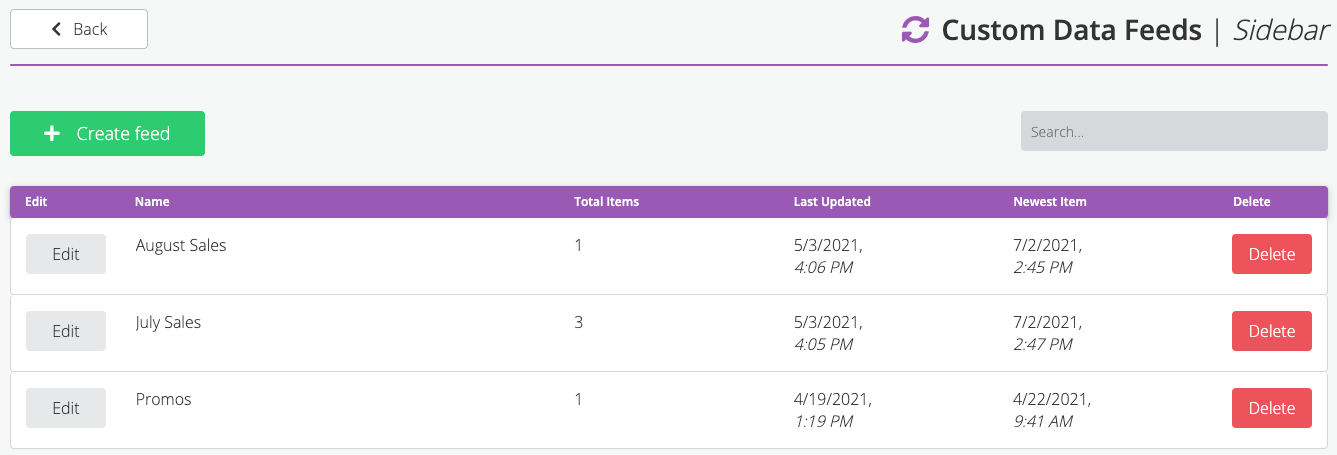
Click the Create feed button. Enter a name for this feed.
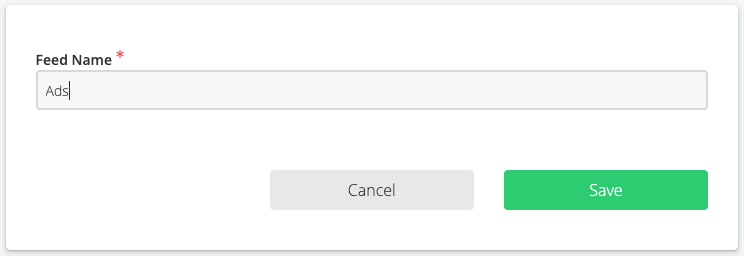
Click Save. On the next screen, enter your headline and upload a picture.
Set the start date and time. If you want the item to appear for only a limited time, switch the toggle under Stop Date to On.