
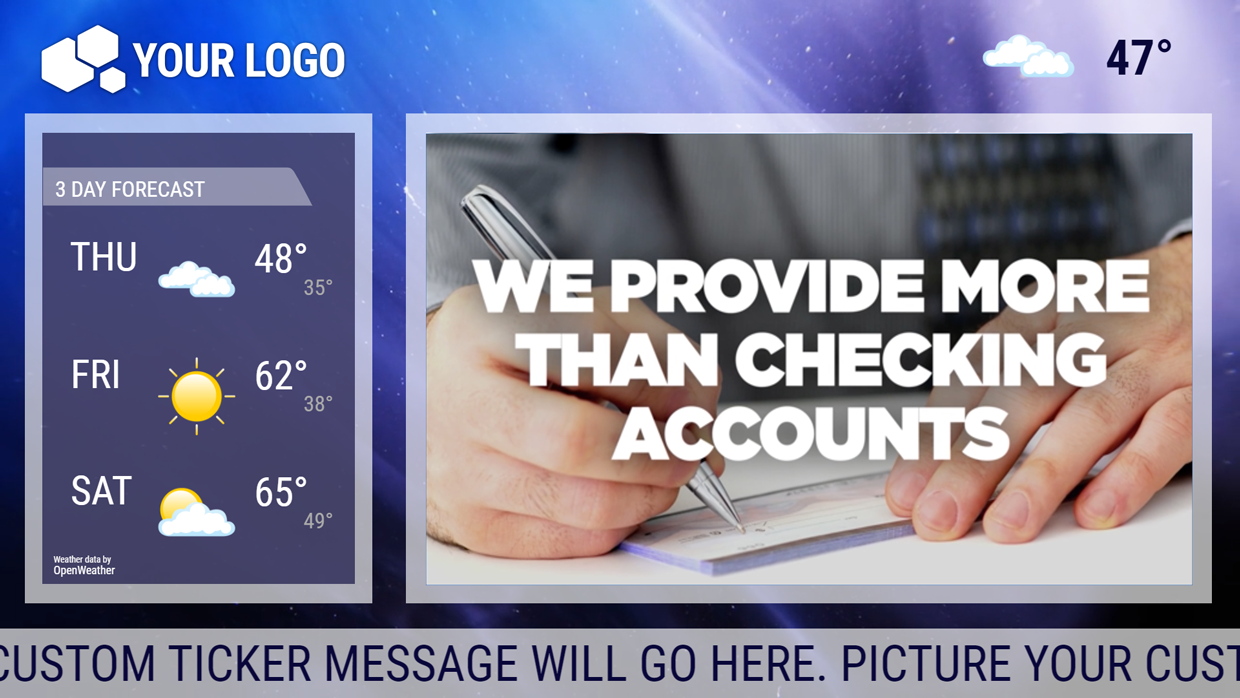
 About screen layouts
By default, your Lobby Video player displays your current video production full-screen, with the optional ticker across the bottom. With screen layouts, your player adds a background theme and a sidebar area for additional content
When active, the sidebar will display local weather by default, or an image feed of your custom content.
Note: The image area is 500 pixels wide by 760 pixels tall. For more information on setting up an image feed, read our Create custom data feeds article.
Activate a screen layout
From the My Products screen, go to Lobby Video, then click the Screen Layouts button at the bottom of the left-side menu.
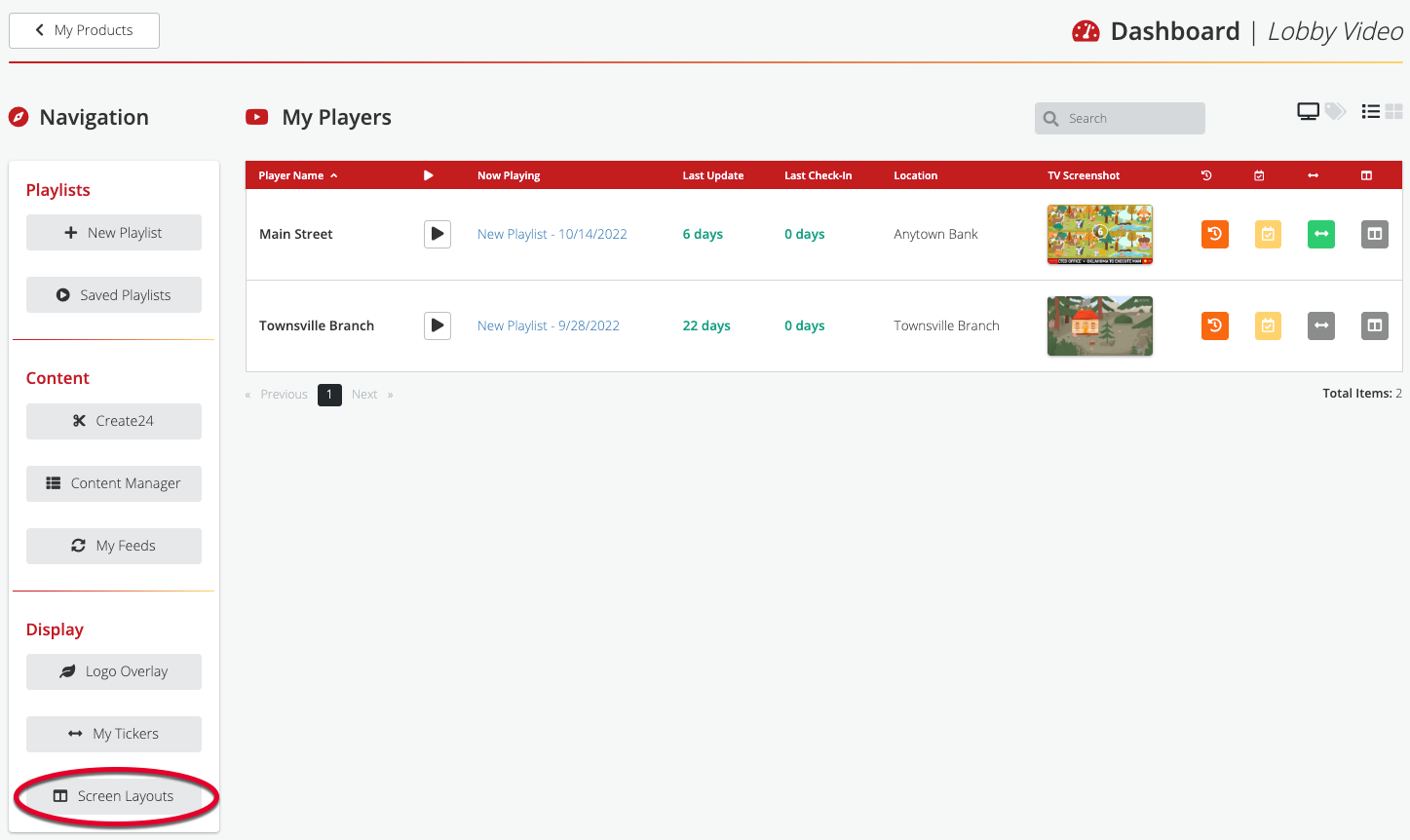
This takes you to the Select screen layout screen.
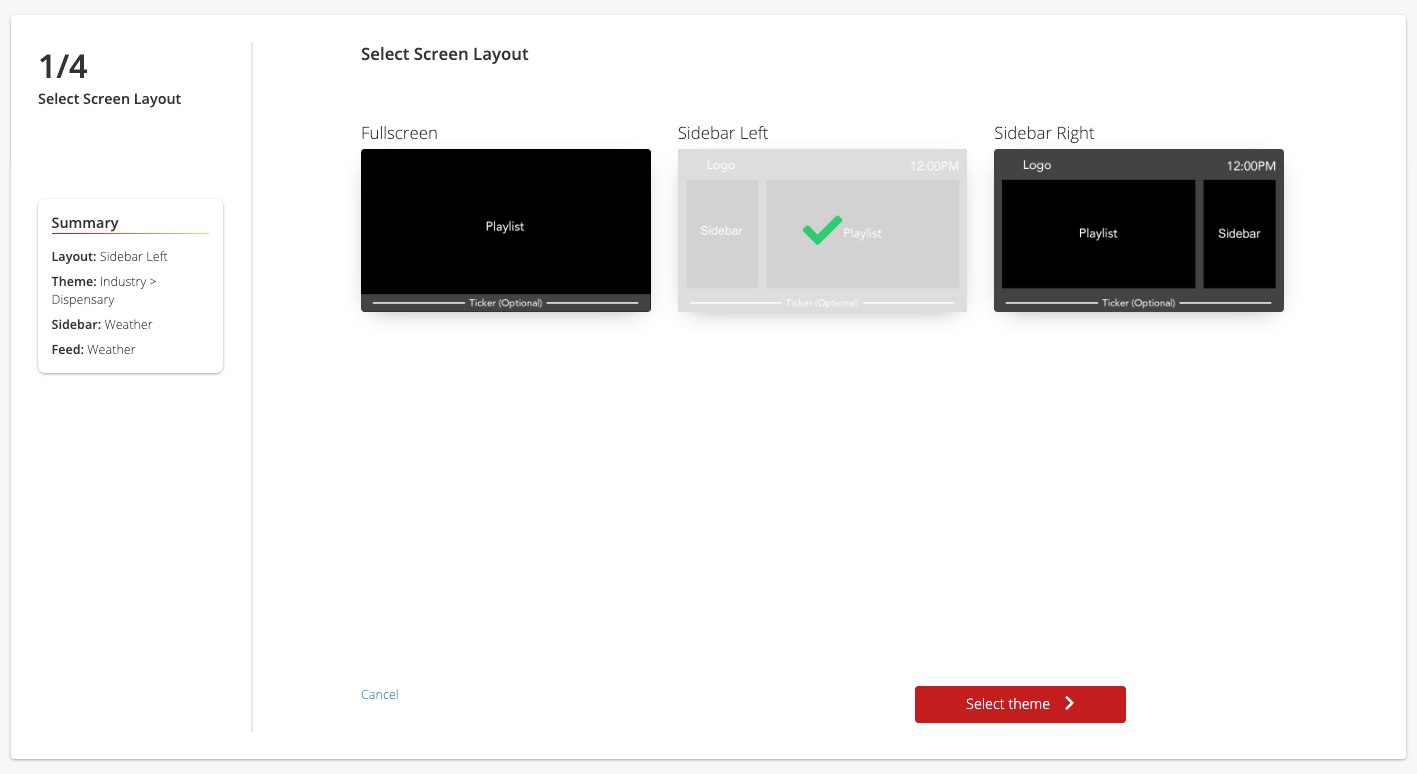
Click on the layout you want to use: Fullscreen (default), Sidebar Left, or Sidebar Right.
If you chose Fullscreen, click the green Select players button. The two steps below don’t apply to you, so skip those and scroll down a few paragraphs to the Select players section.
If you chose Sidebar Left or Sidebar Right, click the green Select theme button. 
On the Select Theme screen, click the theme you want to apply. Then, click Select sidebar.
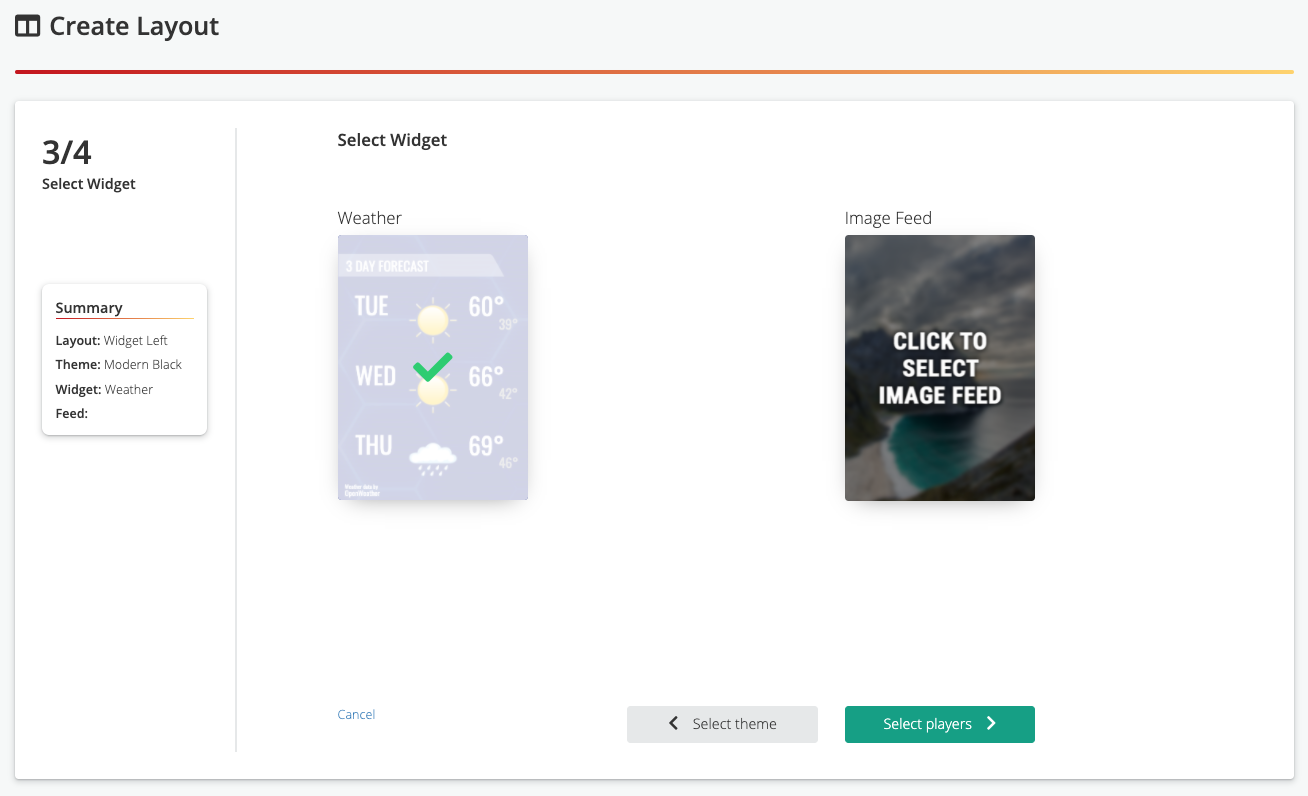
Select either Weather or Image Feed. If you select Image Feed, a pop-up window will prompt you to choose a feed from your saved Image Feeds.

Select the image feed. Finally, pick the Lobby Video players you want to use this layout. You can have different layouts for different players.
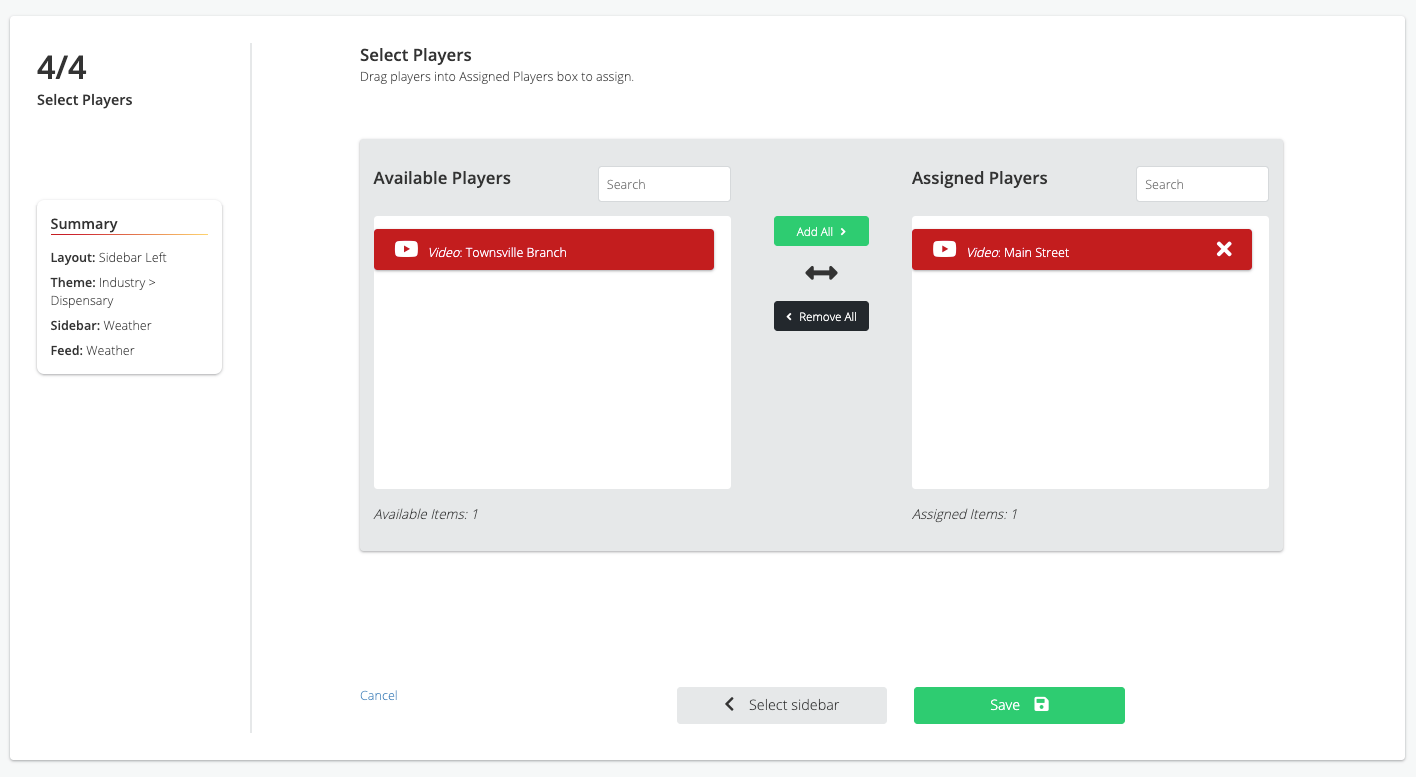 Click Save, and you’re done. Your new screen layout will appear sometime within the next half hour.