
About custom content
As a Works24 client, you have access to a team of professionals who can write and record your custom messages. You can either send us a script, or simply provide an idea and our writing team will take it from there.
One of our talented voiceover artists will bring your message to life.
Access the Content Request page
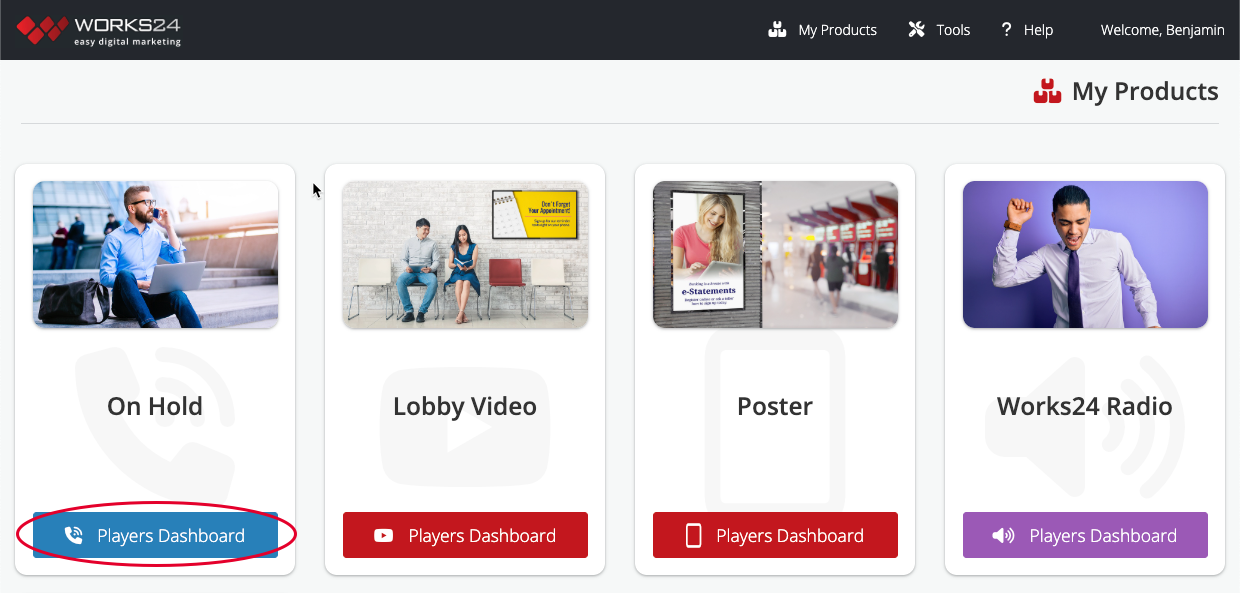
From the main dashboard, click the On Hold Players Dashboard button.
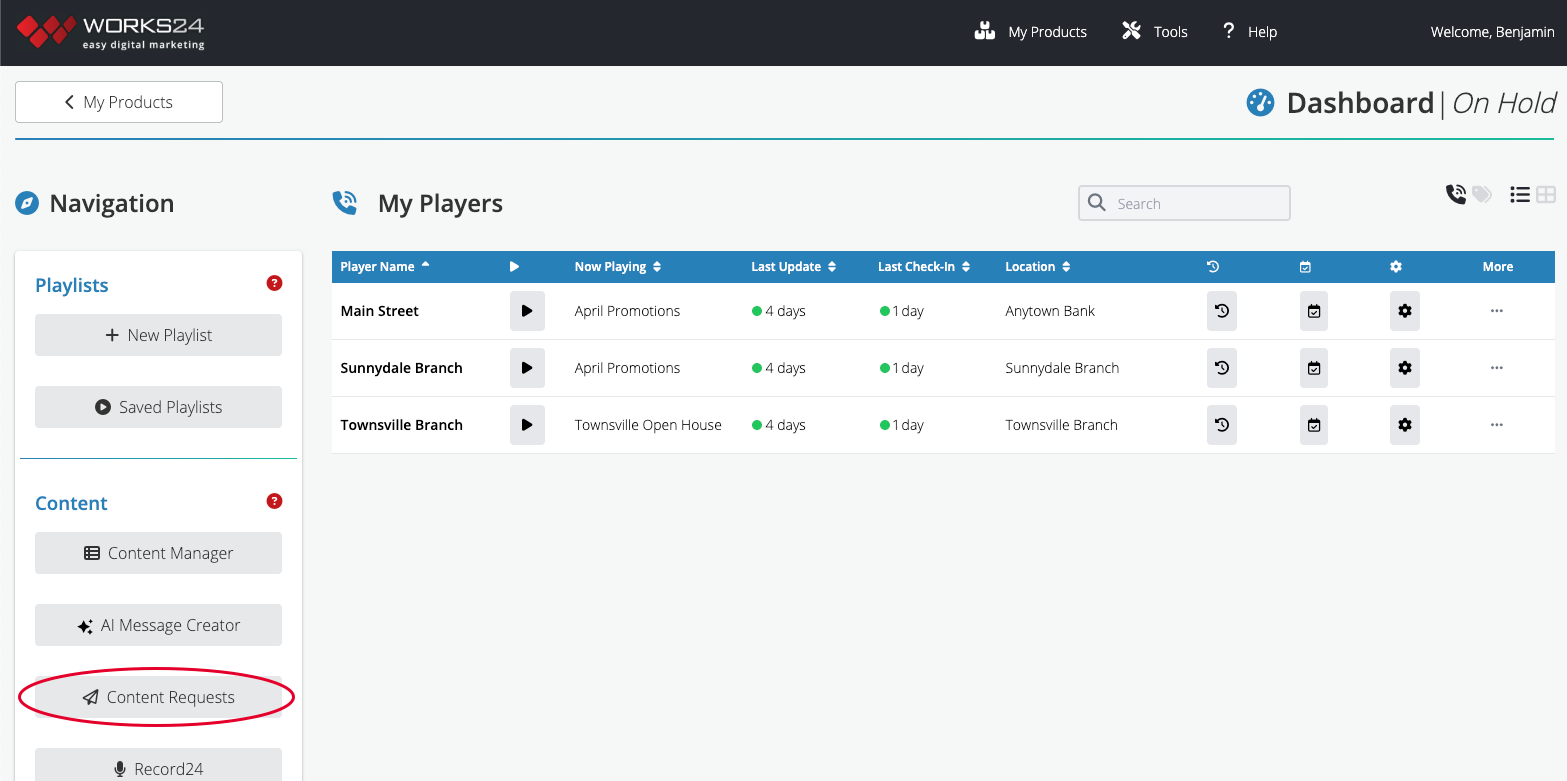
This takes you to the On Hold Dashboard. Click the Content Request button on the left.
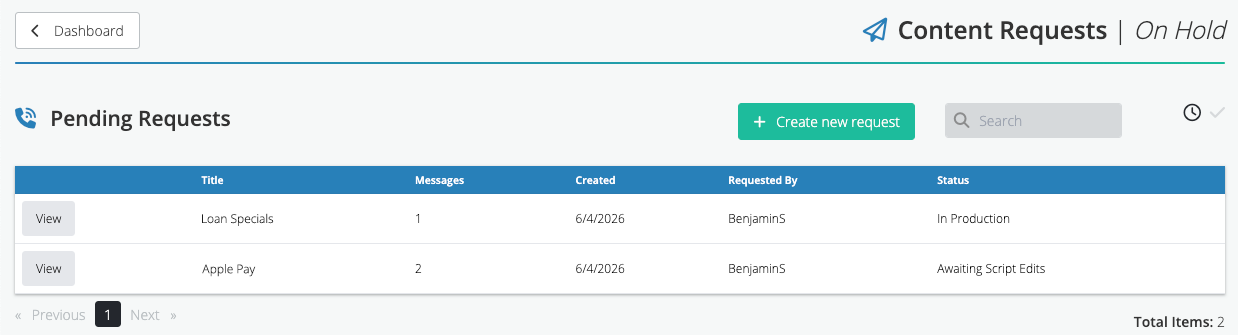
Here, you’ll see a status list of any other open content requests.
Make a custom content request
At the top of the Content Requests page, click the green Create new request button.

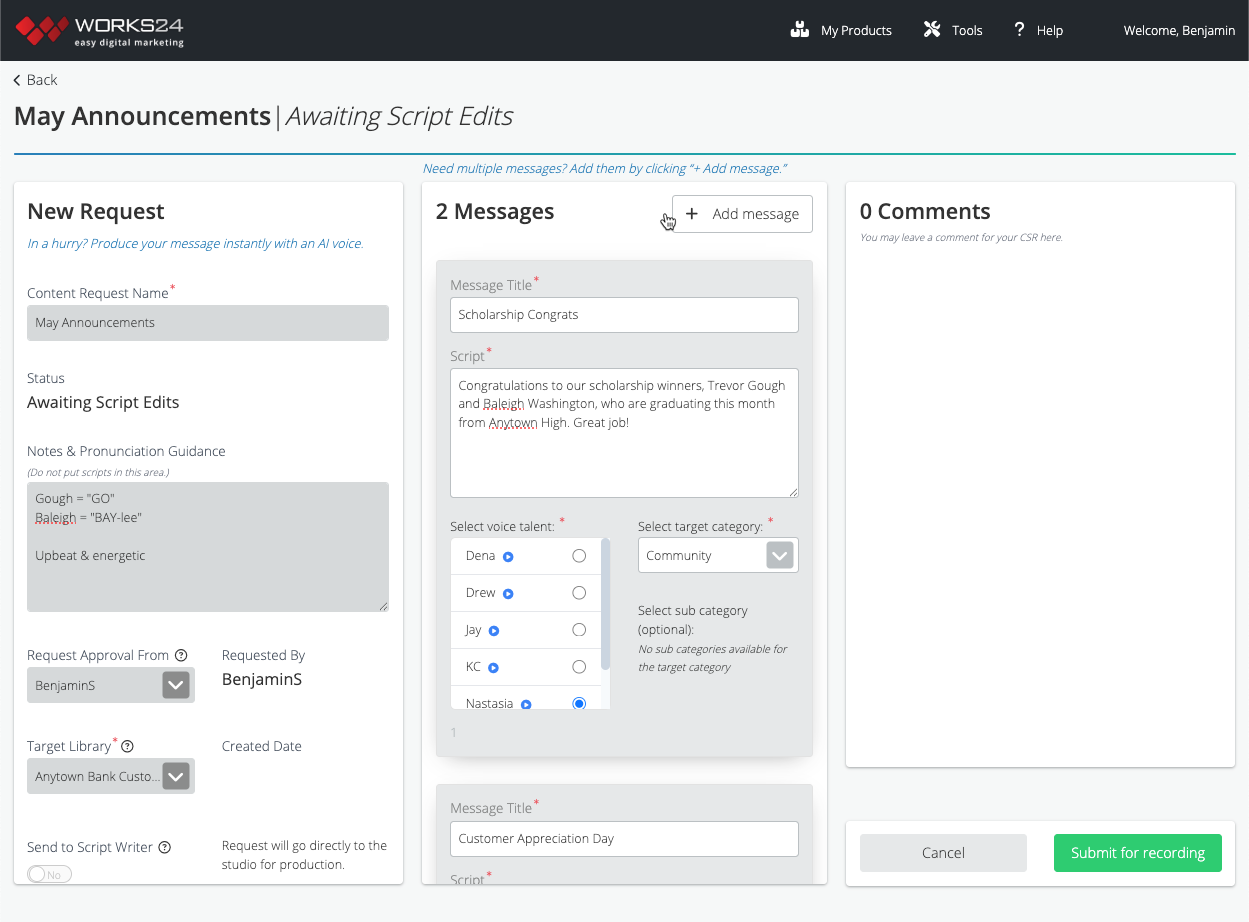
Complete the following fields in the first column of the request:
- Content Request Name — Give this request a descriptive title that will help you identify it later.
- Notes & Pronunciation Guidance — Any information to help the voice artist. (Guidance for people, places, and products is important to avoid production delays or revisions.)
- Request Approval From — Select which user you want us to email notifications.
- Target Library — Where you want the message saved. This is most likely be your Custom Message Library.
- Send to Script Writer? — If you select this, our script writer will proofread your script, or write a script using your ideas. By default, this will be sent directly to our studio for production without editing.
Next, enter the title and script (or ideas) for your message request.
- Message Title — This is how your message will be titled in your content library.
- Script — You can include a complete script, or general ideas.
- Voice talent — Select from a list of voice talent options. Click the blue “play” button to hear a sample recording.
- Target category and subcategory — Where you want the message saved in your library.
To add another message, click the Add message button.
Submit request
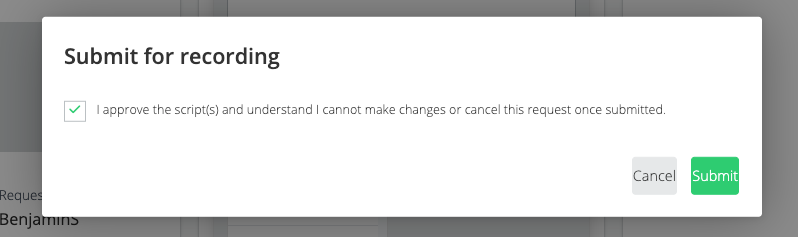
If you are sending the request directly to the studio, click the green Submit for recording button at the bottom right. A popup box will appear, reminding you that you cannot make changes or cancel at this time. Check the confirmation box and click Submit.
If you want our script writer to review your request, click the green Submit for Review button at the bottom right.
Approve revisions
If you submitted your request to our script writer, you will receive an email within a day asking for final approval.
Click the link in the email to view the final script. Either approve the script(s), which sends the request to the production studio, or request revisions. Be sure to leave a comment on the request to describe your changes. The approval process will continue until you approve the message and send it to the studio.
Receive your custom message
The custom message will appear in your Custom Message Library five to seven days after you send it to the production studio. Your CSR will email you when your message is ready. (Need your message faster than that? How about a few minutes? Try our AI-based voice talents!)