
About logo overlay
By default, your Lobby Video player displays your current video production full-screen, with the optional ticker across the bottom. With logo overlay, your player adds your logo to one of the 4 corners of your screen.

Activate a logo overlay
From the My Products screen, go to Lobby Video, then click the Logo Overlay button on the left-side menu.

This takes you to the On-Screen Logo Overlay page. Choose the corner on which you wish the logo to appear, then click the Select Players button.
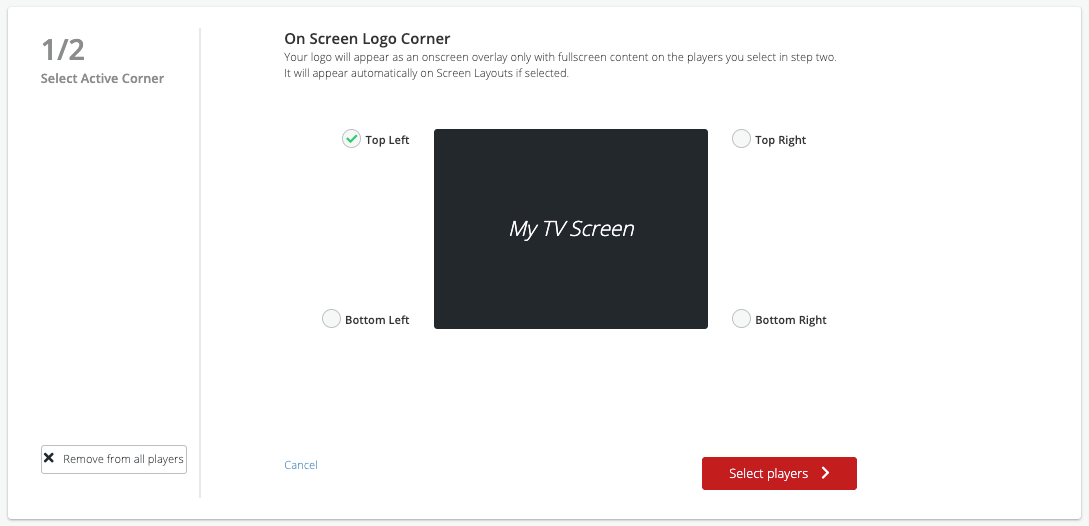
Finally, pick the Lobby Video players you want to use this overlay. You can have different overlay options for different players.

Click Save, and you’re done. Your new logo overlay will appear sometime within the next half hour.