
Access the video players manager
On the My Products page, click My Video Players.
This takes you to the Lobby Video Dashboard. This screen gives you an overview of your company’s video players.
All Players view
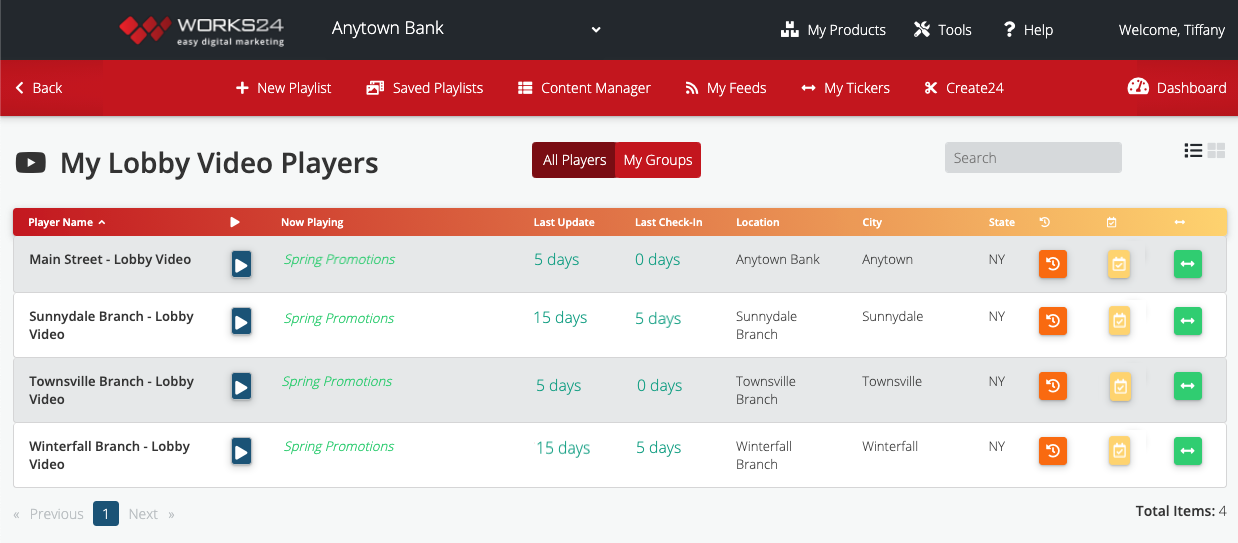 Preview
Click the play ( ) button to view to your current playlist.
Activity
— Indicates the number of days since this player changed to a new playlist.
— Indicates your player has checked in today.
— Indicates the number of days since your player last checked in, and that it is not checking in as it should.
Actions
History
A look at this player’s past playlists.
Schedule
A preview of scheduled playlists.
Ticker
This indicates whether or not a scrolling ticker is playing on this screen. Click this icon, and then click the Enable Ticker toggle to turn the ticker on or off. Select a ticker from the drop down menu.
Groups view
You can send the same or different playlists to different video players. If you are sending the same playlist to multiple players, you can create a group. Then, schedule the playlist for the group instead of each individual player.
At the top of the My Lobby Video Players screen, click the My Groups button to switch to a view of your groups of players. Click the group name to reveal a list of all locations that belong to the group.
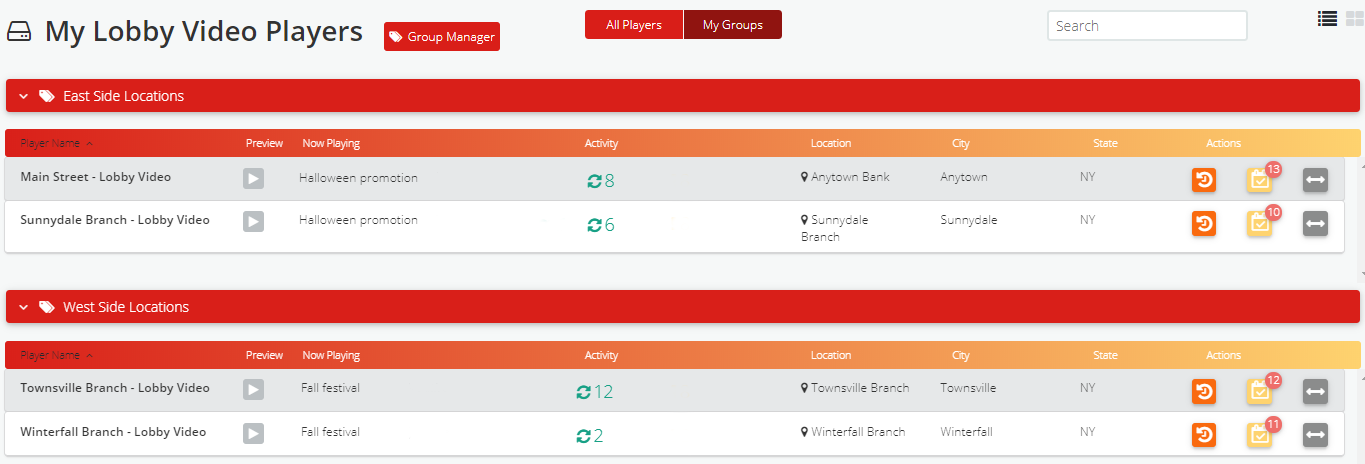
To create or change a group, click the Group Manager button at the top.
Manage groups
Click the Group Manager button at the top of the My Lobby Video Players screen. On the left is a list of available players. A player can belong to multiple groups.

Create a new group by clicking the green New Group button at the top. Type in a name for the group and click Save.
To add a player to a group, drag it from the list on the left to the group on the right. Now you can send the same content to all of the players in that particular group.