
Start a new project
From the Create24 Dashboard, click Get Started under Create New Video.
This takes you to the Content Browser to pick a background video.
Choose a background video
From the Content Browser, you can upload your own background video or pick one from our content library.
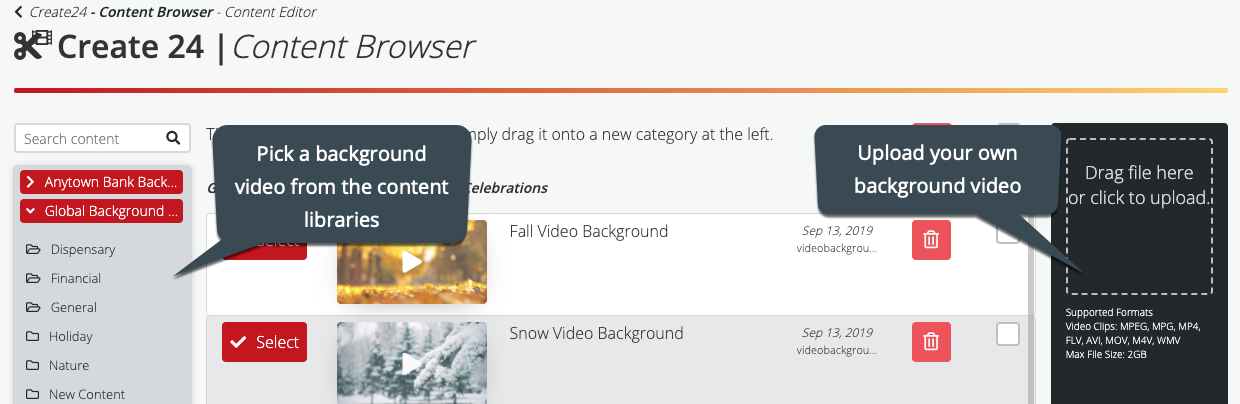
Use one of our videos
To select a video from our content library, click any folder on the left to browse. Preview any video by clicking on it. Click Select to open the video in the video editor.

Use your own video
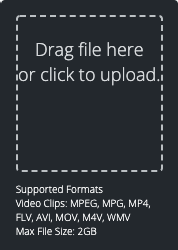
Read Specs for uploading videos to be sure your video is in the right format and to ensure the best quality.
Add your video to the content library with the content uploader on the right side of the screen. Drag-and-drop the file onto the uploader, or click inside the box and navigate to the video file on your computer to upload it.
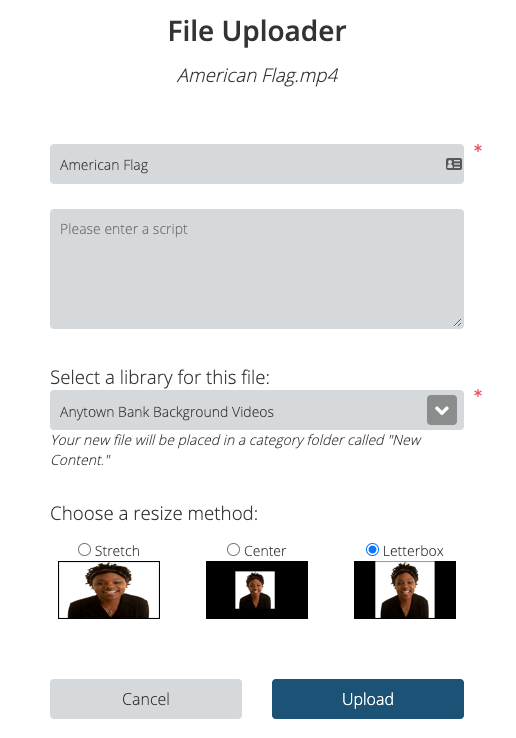
When prompted, enter a title for the video background and, if desired, enter a script. Select the content library where you want it saved.
Choose how you want the video resized if it does not exactly match the dimensions of the screen.
Click Upload. Depending on the size of the file and your internet connection, it could take up to half an hour to upload.
After the background video uploads, you will find the file in the New Content library on the left.
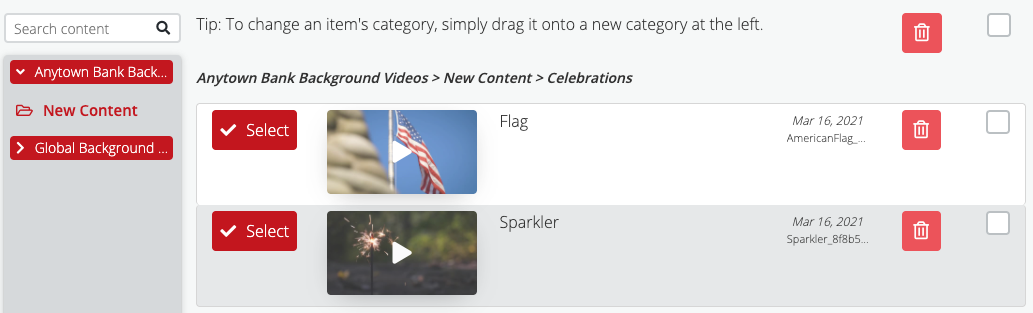
Click Select to open the video in the video editor.
Design your video
Add text, images, shapes, and motion to your video in the video editor.
Each of these elements becomes a separate layer, shown in the video timeline at the bottom of the screen. You can control when the element appears or disappears on screen by dragging the endpoints of the corresponding bar on the video timeline. You can also add effects such as fade and swipe with the transitions control panel.

For more detailed instructions, read the Design a video article.
Preview your work
 Use the Play button at the bottom of the toolbar on the left to watch the clip in its entirety. You can also grab the playhead (the yellow line) anywhere on the timeline to move forward and backward.
Save to your video library
Once you’re happy with your video, click the Save to Library button at the bottom right. (You may need to scroll down the panel on the right to see this.) Give your video a title, add a script if you want to, and select a library.
Add your video to a production
Return to the Works24 Portal to incorporate the video you just made into your next lobby video production!