
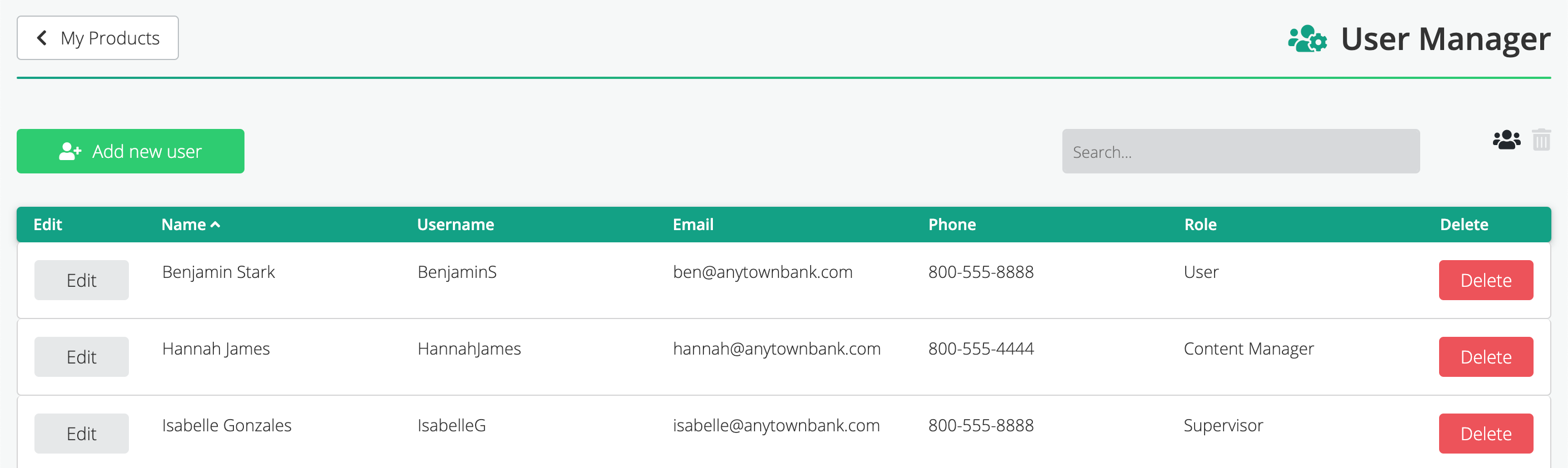
About the User Manager
Multiple people within your organization may use Works24. You can add or remove users — and set what tools and services they have permission to use — in the User Manager. You must have Supervisor-level access to make these changes.
Find the User Manager here: Tools > User Manager
User roles
Before you make changes to a user profile, understand the abilities and limitations of the three user roles:
- Standard User
- Creates playlists
- Schedules playlists for assigned units using existing content
- Can’t upload content or manage users
- Content Manager
- Has all of the privileges as a Standard User
- Moderates feed content
- Manages libraries
- Uploads, creates, edits, and deletes content
- Can’t manage users
- Supervisor
- Has all of the privileges of Standard User and Content Manager
- Accesses all tools and services
- Adds/removes/edits users
- Manages access to libraries and locations
- Resets passwords
Add a new user
In the User Manager, click the Add New User button.

This opens a form.
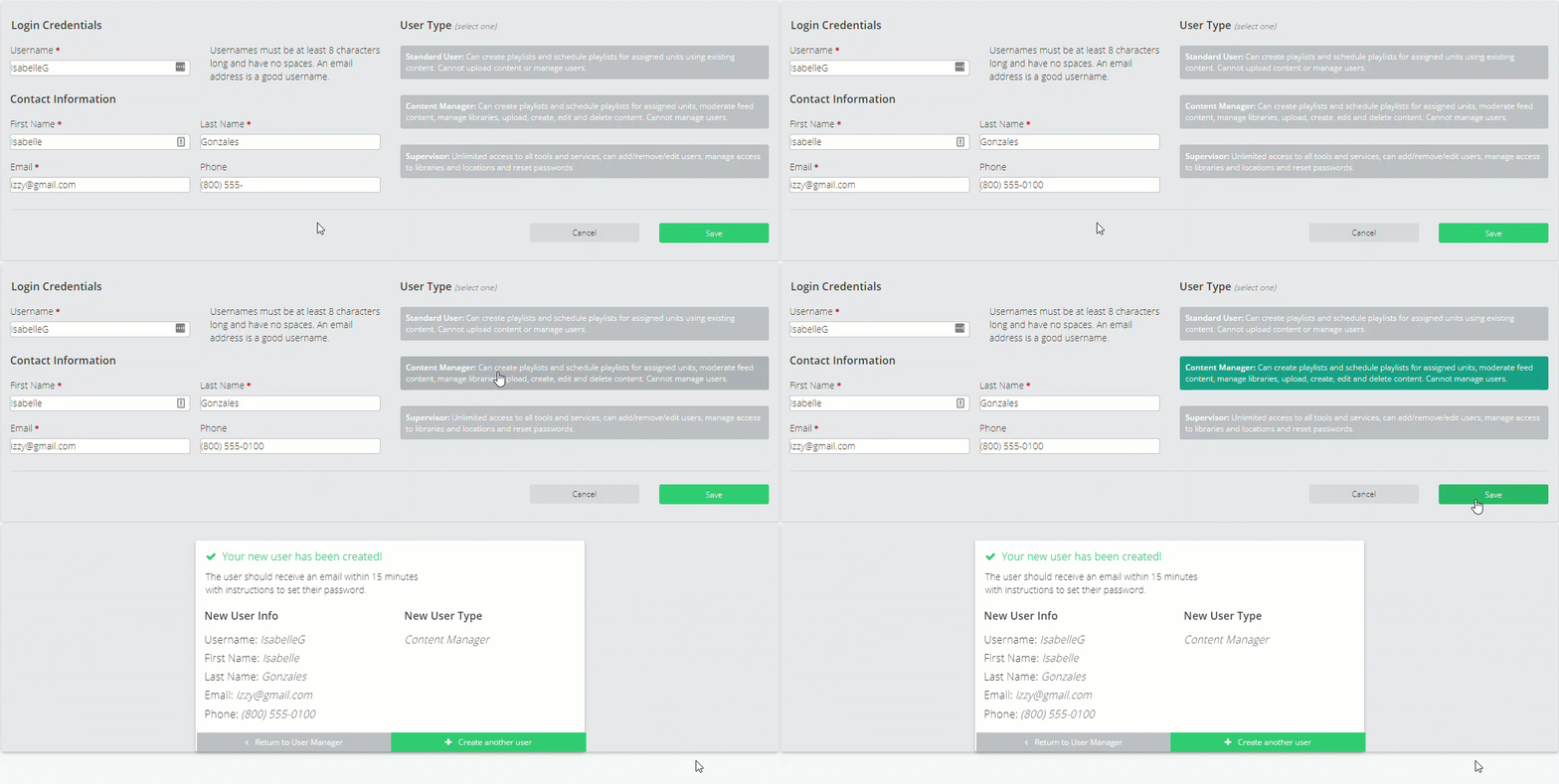
Select a username and provide basic information about the user, including name and email address.
Then, set this user’s level of access by selecting one of the User Type options at right.
Save. An email with instructions to set up a password is sent to the user.
Edit a user account
Go to the User Manager and click the Edit button next to a user’s name.
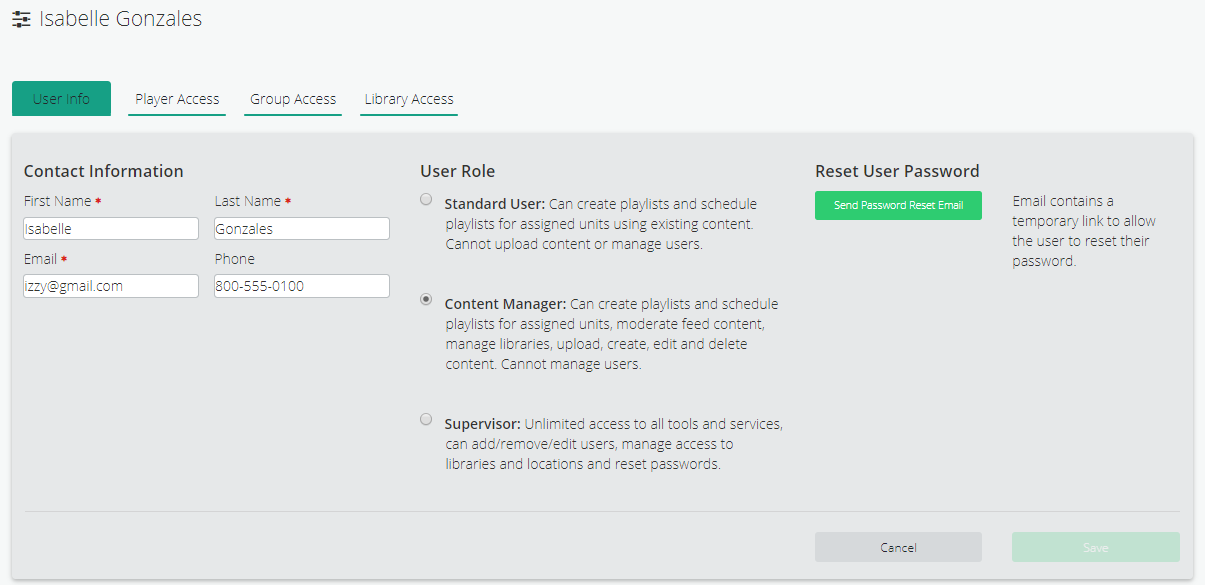
 You may now change the user’s information, including their contact information and role. This is also where you can reset a password.
Reset a password
To reset a user’s password, open the user’s account as described in Edit a user account, above. Click the green Send Password Reset Email button on the right. Within a few minutes, the user will receive an email that contains a temporary link to reset their password.
Manage user access to players, groups, and libraries
You can limit a user’s access to specific players, groups of players, and content libraries.
Here are some examples of why you might want different access for different users:
- Jane manages the videos at your dental office, but Paul manages the on hold messages.
- Tyrone updates the videos at your midwest banks, which are in one group. Cheryl manages the video players for your southeast banks, which are in a different group.
- You want Michelle to use video clips specifically from the Banking Video Library, but don’t want to use the Banking Channel Video Library at this time.
To manage a user’s access to players, groups, or libraries, go to the User Manager and click the Edit button next to the user’s name. This opens the user’s account, which displays the User Info tab.
The same type of drag-and-drop tool is used to manage the players, groups, and libraries. Let’s use players as our example.
Select the Player Access tab. A list of all of your company’s players appears on the left.
To give a user access to a player, grab (click and hold) the player from the Available Players list on the left and drag it to the User’s Players list on the right.
To remove the user’s access to a player, click the X next to the player name.
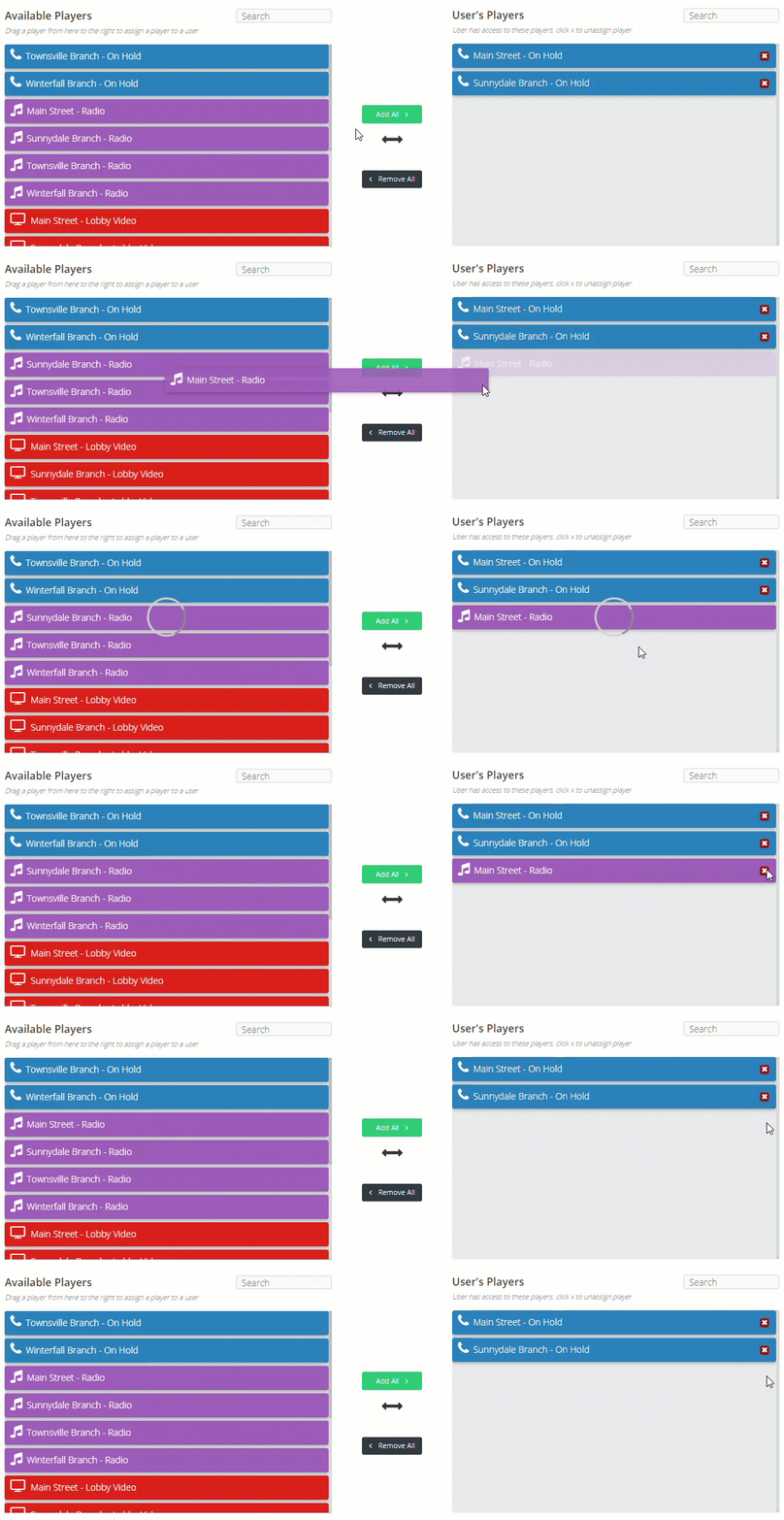
To manage user access to groups or libraries, click the Group Access or Library Access tabs. These work the same way.
Delete a user account
Go to the User Manager and click the red Delete button next to a user’s name. A popup box will ask you to confirm that you want to delete the user.
