
About Record24
Record on hold messages in your own voice from your computer with Record24.
You will need a computer microphone and speakers. A USB microphone is a budget-friendly option that offers good audio quality.
Access Record24
From the Portal Dashboard, go to On Hold Messaging > My On Hold Players. Click the Record24 button at the bottom of the menu on the left.
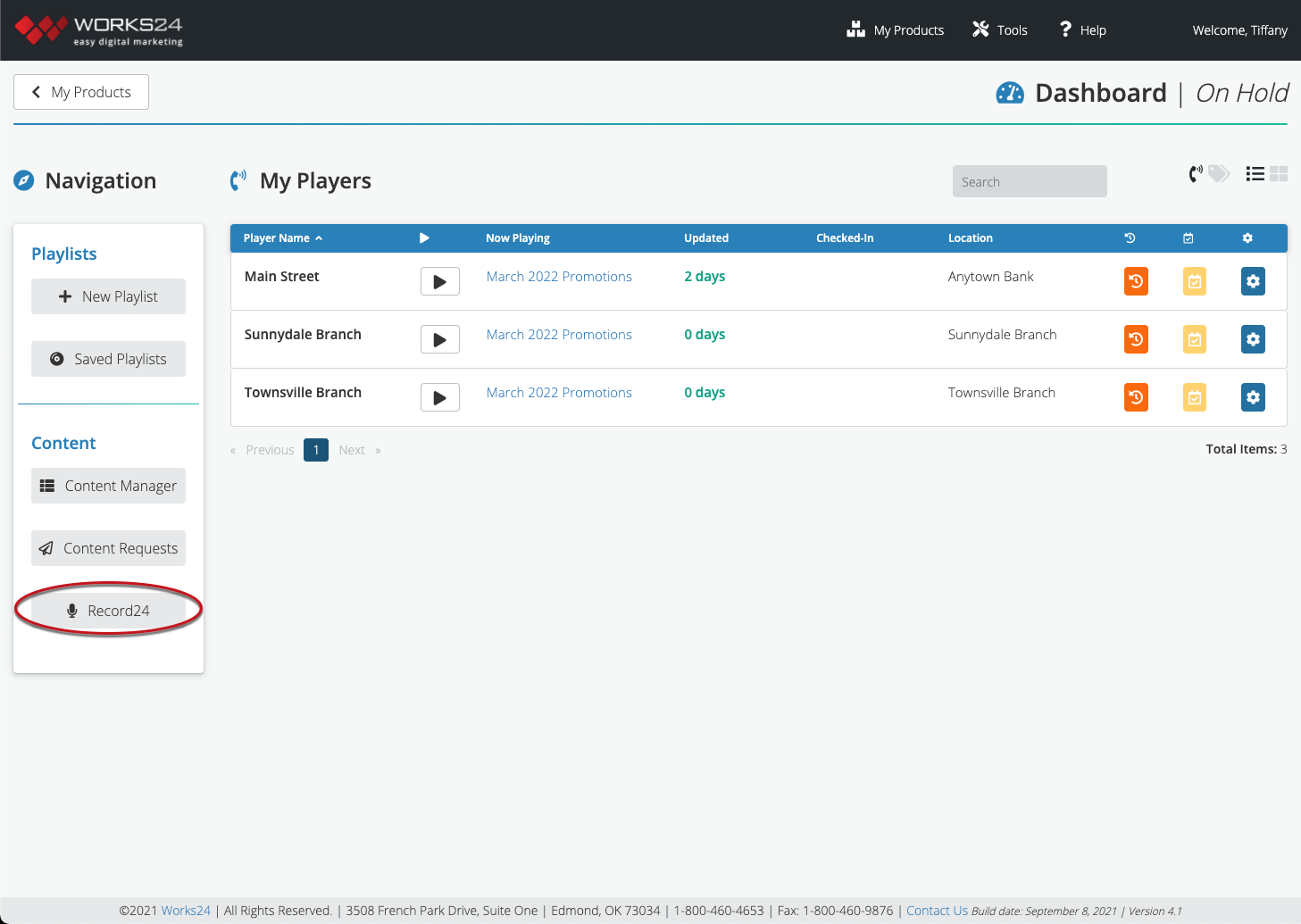
Be sure a microphone is connected. A pop-up window may appear, asking if you will allow portal.works24.com to use your microphone. Click Allow.
If no microphone is connected, the buttons will not be clickable. Plug in a microphone and refresh the screen to start.
Record your message
If you have a text file of your script, copy and paste it into the script window at the bottom of the screen. This allows you to read directly from the screen, and the script will be included with the message for at-a-glance reference.
Adjust the text size using the dropdown menu at the top of the box to a size that is easiest for you to read.
Click the microphone button at the bottom of the window to begin recording. Click the button again to stop recording. Feel free to pause as needed, as you will be able to edit this recording.
The volume bar at the bottom right helps you visually monitor your voice level as you record. If your microphone has a recording volume option, you may wish to adjust it.

You can preview your recording by pressing the play button (triangle).
If you aren’t happy with your recording, click the trash can icon to discard it.
Edit your message
When you stop recording, an editor will appear. Move the green selector over an area you want to delete, then click the Cut selection button to delete it. You can make the green selector wider or narrower by grabbing the right or left edge and moving it.

To view the recording in closer detail, click Selection mode button, and it will switch to Zoom mode. Now, you can click and drag on the visual editor to zoom in to a smaller section of the recording and cut it with more precision. Click the button again to return to Selection mod.
Download your message
If you want to save a copy of your recording to your computer as an .mp3 file, simply click the Download button, and it will be downloaded under the title “my-recording.mp3” to your Downloads folder.
Upload your message to the Content Manager
Click the Upload to Content Manager button, and a short form will appear.
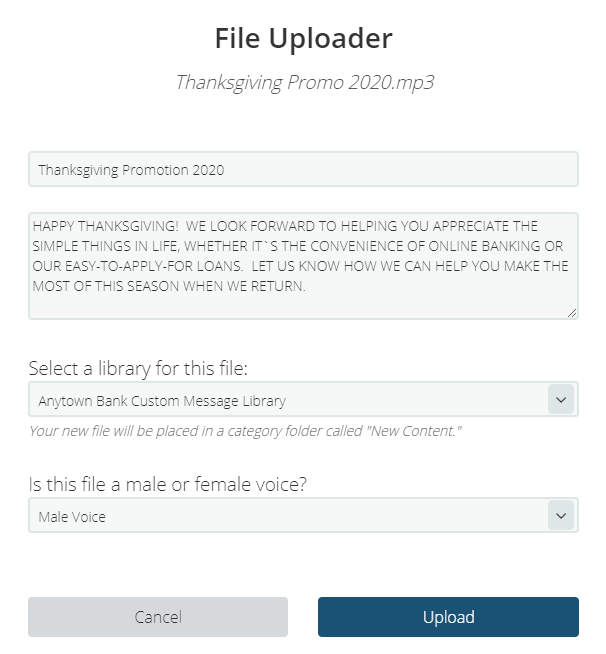
- Enter a title
- Type or paste a script, if desired. (If you entered a script on the previous screen, it will appear here automatically)
- Select a library to save it to
- Select whether the voice is male or female
- Click the Upload button
- Click Exit to return to the voice recorder
The file should appear in the New Content category of the library you selected in the next 30 minutes.