
About video playlists
A playlist is a collection of video clips that play in a continuous loop. Use our drag-and-drop system to pick and order the video clips until you have the perfect playlist.
Start a new playlist
On the My Products page, click the Lobby Video Players Dashboard button.
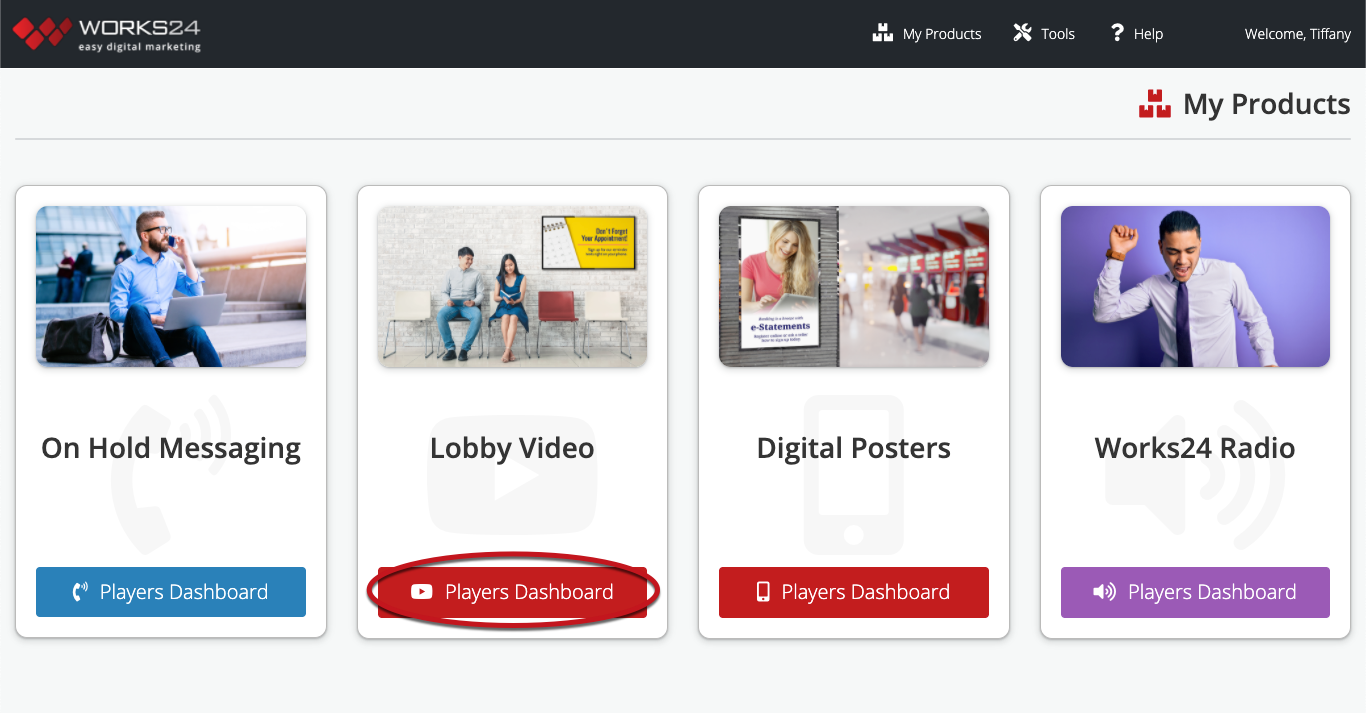
This takes you to the Lobby Video Dashboard. Click the New Playlist link on the left.

This takes you to the Playlist Builder.

Add clips to your playlist
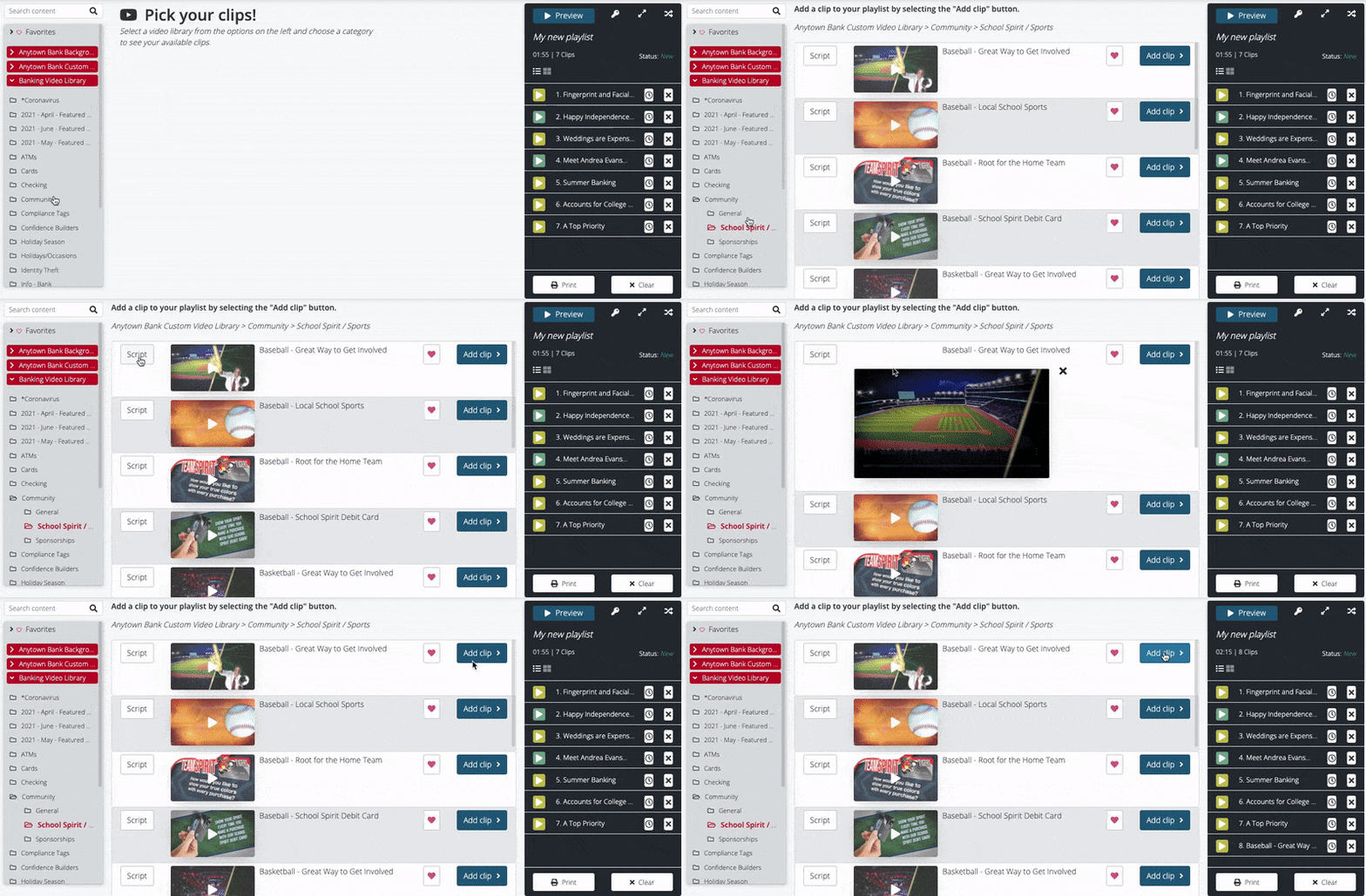
Each library contains folders of video clips. Select a folder. The video clips appear in the center of the screen.
- The Script button displays the text of the video clip.
- To play the video clip, click its thumbnail image.
- Add a clip to your Favorites library by clicking the heart icon.
Click the Add Clip button for the video you want to include. The title of the video clip appears in the playlist on the right.
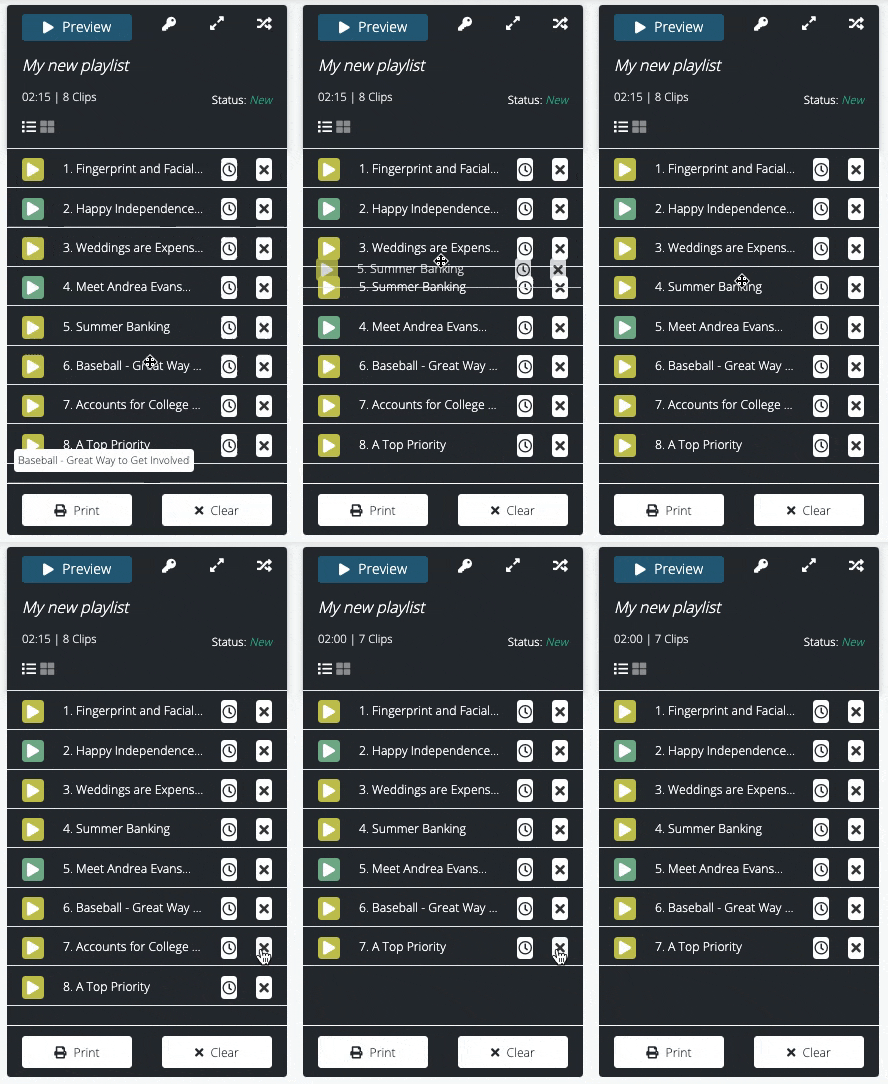
To reorder the video clips, click a clip title and drag it higher or lower in the list. Delete a clip from the list by clicking the “X” by the title.
The Preview button at the top of the player opens a larger version of the production.
Continue adding video clips until you are satisfied with your playlist.
Schedule individual clips (optional)
You will schedule the playlist start and end dates after you save the playlist. But what if you want a certain clip to play only on a person’s birthday, or to quit playing after a promotion ends? You can schedule an individual clip’s start and end dates by clicking the clock icon next to the clip title in the playlist.
Example: You create a playlist and schedule it to play for the month of February. You could schedule a “Happy Valentine’s Day” clip to start the morning of Feb. 14 and end that evening.
Tip: Use the Print button on your playlist to print the scripts of all of the video clips in the playlist.
Save playlist
After selecting and arranging your video clips, click the green Save Playlist button at the bottom of the screen. A window appears, prompting you to name and save your playlist.
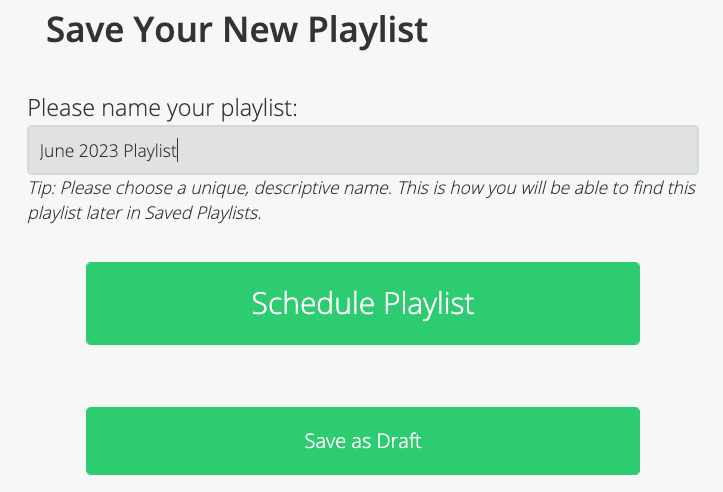
In the field under “Please name your new playlist:”, type a unique, descriptive name that will make this playlist easy to find. You may want to include the date and topics.
Click one of the two green buttons:
- Schedule Playlist
Schedule playlist delivery for right now or a date in the future. - Save as Draft
Save as a draft and come back to edit or schedule later.
Schedule playlist
If you selected Schedule Playlist, you should be on the Schedule page.
1. Choose your players
Select which players will run this playlist.
Click a player from the Available Players list on the left. Drag it to the Assigned Players list. Only players on the Assigned Players list will receive this playlist.
You may also add or remove all players from the Assigned Players list by using the buttons in the center.

You may also assign groups of players. Click the Groups button at the top left of the scheduler to do this.

2. Schedule to play now or later
Once you’ve selected your players, you can begin playing the playlist immediately or schedule it for a later time.

Start right now — Click Schedule Playlist Now, and the playlist will start within the hour.
Schedule later — Select the date and time from the dropdown menus, then click Schedule On Selected Date. The playlist will begin within an hour of the selected date and time.