
Get started
Log in to Create24 with the same username and password that you use for the Portal. This takes you to the Content/Templates screen.
Click the Create New button at the top right corner of the screen, then select Create Video Clip.

Choose a background video
Select a background video from our content library, or upload your own.
- Our video: To select a video from our content library, click any folder on the left. The videos appear on the right. Click a video to preview or select it.
- Your video: Upload your own video clip by clicking the Upload File button.
IMPORTANT: Please follow the guidelines listed in our Specs for uploading video clips article.

Design with layers
You will now use the video clip editor to add images, shapes, and text. Each element is a separate layer on the design. In the example below, the user moves a red rectangle layer lower in the layer stack, under the white text layer.

Layers can appear and disappear at certain points in the video.

Refer to these two articles to learn how to design your video:
Preview your work
Use the Play bar at the bottom of the screen to watch the clip in its entirety. You can also grab the playhead (the white dot) anywhere on the timeline to move forward and backward.

Publish your video clip
When you are satisfied with your design, click Publish Now.

You will be prompted to name the video clip, and pick the library and category where you want the slide saved. Click OK.
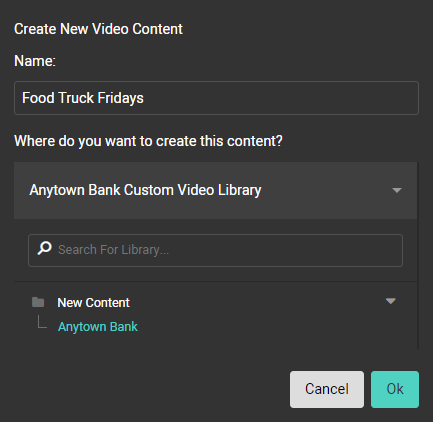
The video will be added to the library and category you designated, but it may take up to 30 minutes to process the video and make it available in the Portal. You cannot make changes to the design during this time.
